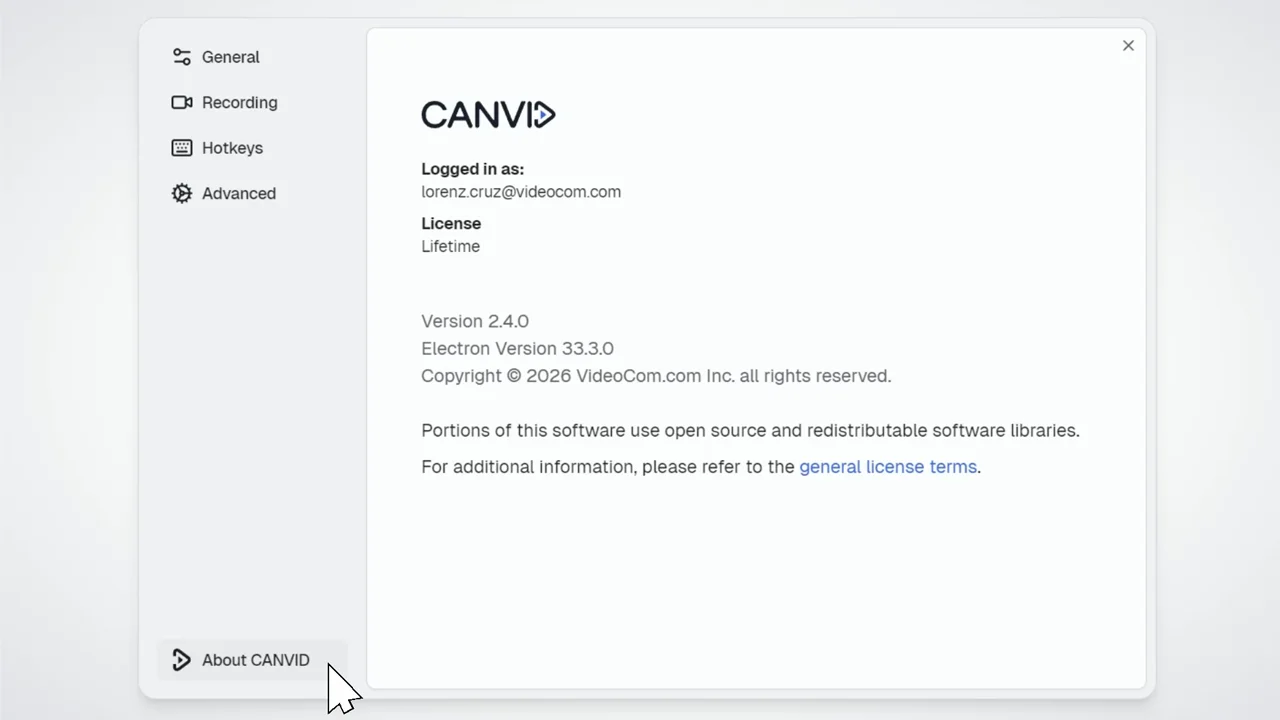
App Settings
Easily configure CANVID to your needs. Adjust general preferences, recording options, hotkeys, and view app details to personalize your recording experience.
CANVID lets you configure the app to match your preferences. To access, click the menu at the top left, then select Settings.
General
General Settings allow you to manage the app’s core preferences:
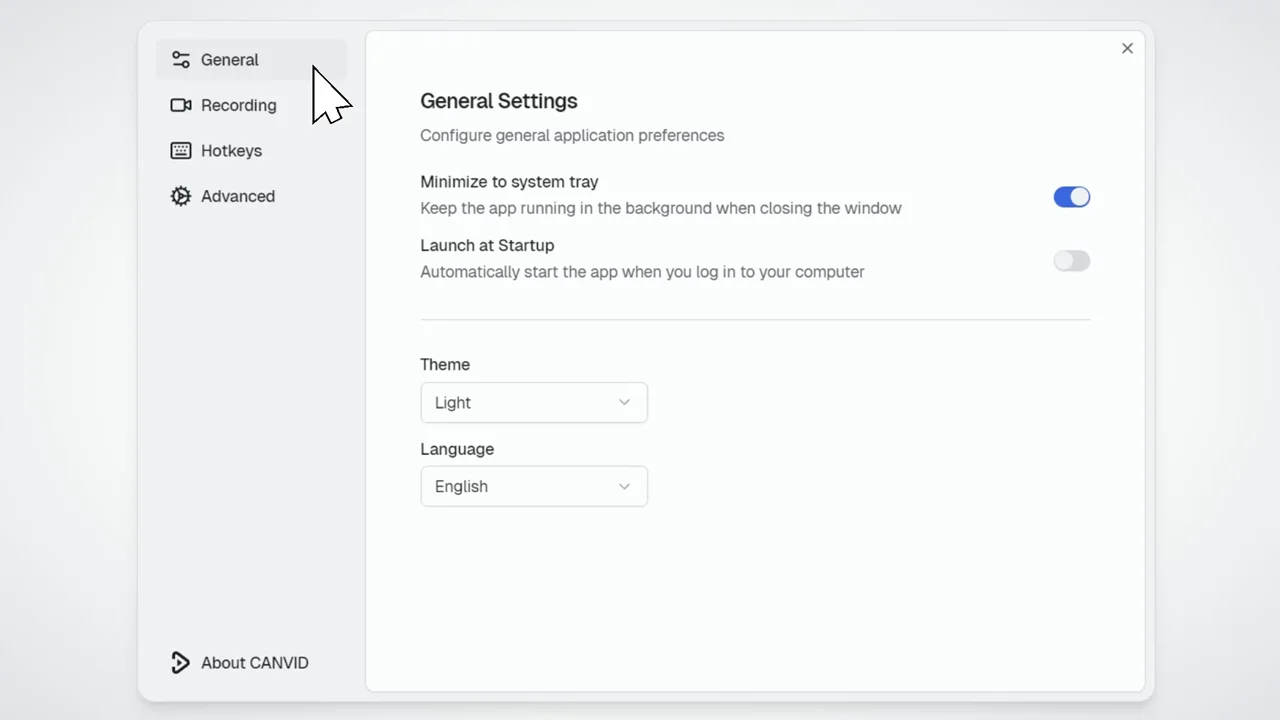
- Minimize to system tray: Keep the app running in the background when you close the main window.
With this option enabled, you can quickly access some features of the app at any time via the System Tray.
- Launch at startup: Automatically start the app when you log in.
- Theme: Choose between Light, Dark, or System mode.
- Language: Available in English, Dansk, French, Japanese, and Korean (Spanish Language support coming soon)
Language Settings is also quickly accessible via the Main Menu.
Recording
Recording settings let you customize advanced AI and encoding options:
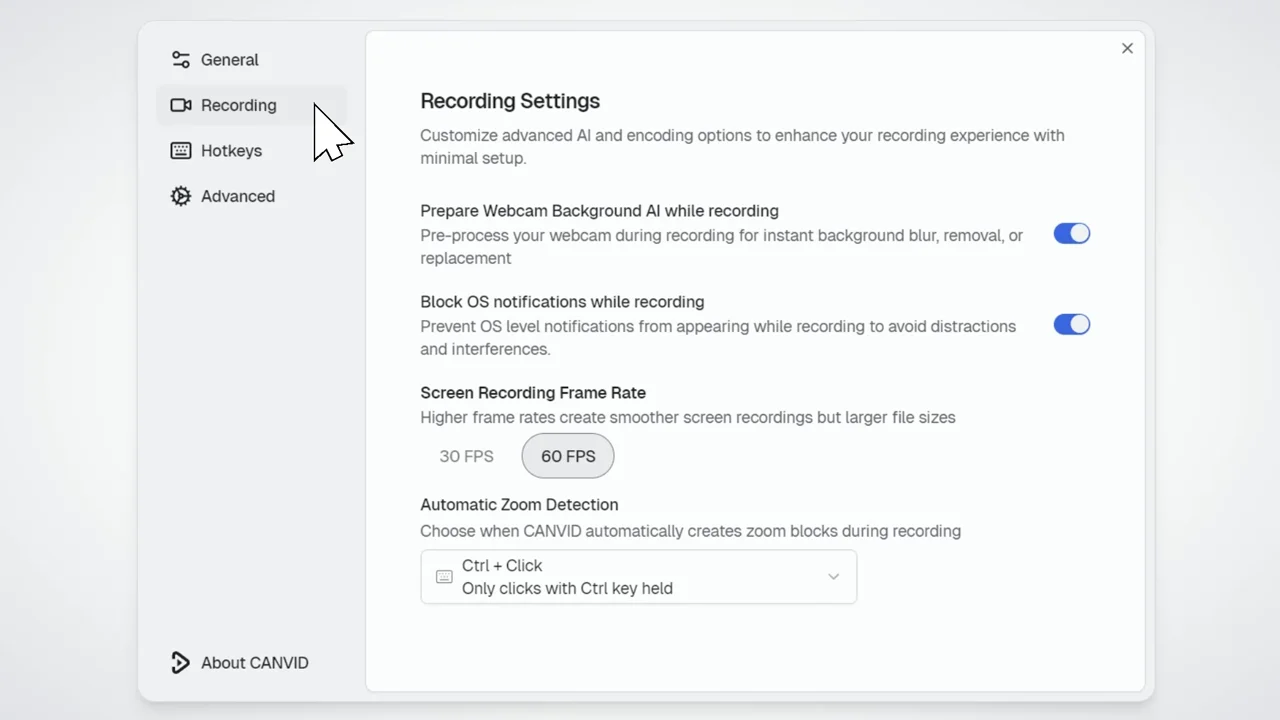
- Prepare Webcam Background AI while recording: Process webcam effects (blur, replace, or remove) in advance (during recording) to save time.
- Block OS notifications while recording: Prevent notifications from appearing so they don’t interrupt your recording.
- Screen Recording Frame Rate: Allows you to change the framerate of the actual recording to 30 FPS or 60 FPS. A higher setting will be more demanding to your system.
- Automatic Zoom Detection: Choose a setting for when the the app will automatically create zooms when clicking during recording
- All Clicks (Default): Generate a zoom with every click
- Long Clicks (1s): Generate a zoom only when a click is held for more than 1 second
- Ctrl+Click: Generate a zoom only when the Ctrl key is held
You can also access the Recording Settings quickly via the icon at the top (only when in the capture/prerecording setup windows)
Hotkeys
Customize keyboard shortcuts for faster access to key features
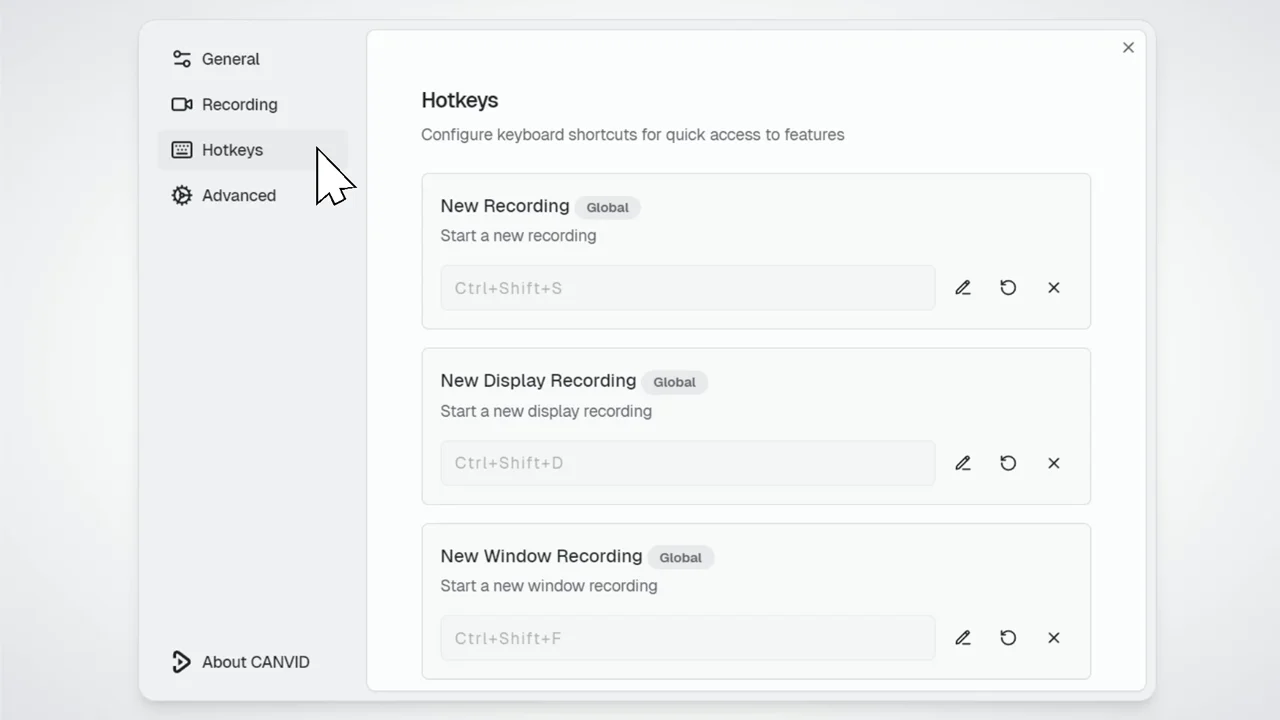
CANVID Hotkeys Settings showing some of the shortcuts you can set:
- New Recording: Ctrl + Shift + S
- New Display Recording: Ctrl + Shift + D
- New Window Recording: Ctrl + Shift + F
You can also manually assign hotkeys to the following (no hotkeys assigned by default):
- Pause/Unpause Recording
- Stop Recording
- Open Last Project
Make sure your hotkeys don't overlap with other shortcuts already active on your system.
Be sure they don’t overlap with other shortcuts already active on your system.
Advanced
These should only be enabled if recommended by the support team
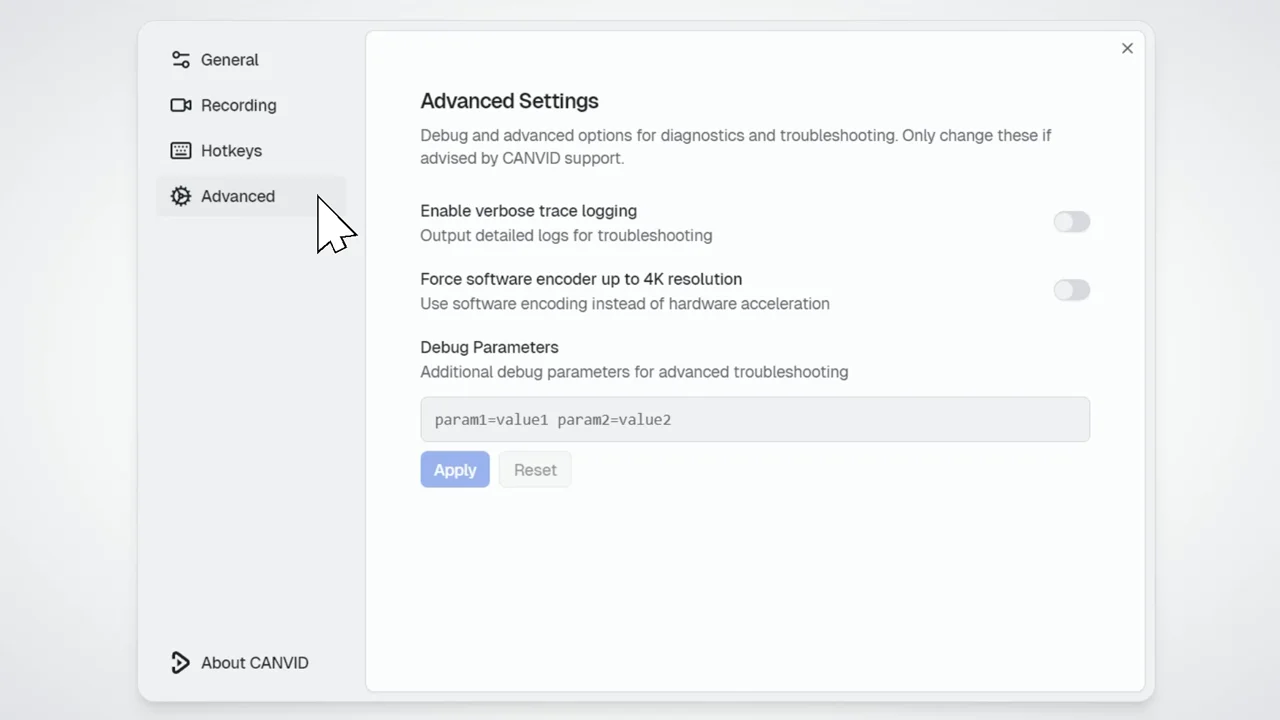
- Enable verbose trace logging: Creates detailed logs for troubleshooting complex issues.
Learn more: Verbose Trace Log
- Force software encoder up to 4K: Uses software encoding if hardware encoding fails.
- Debug Parameters: Additional options for advanced troubleshooting.
About CANVID
The About section shows information that might be useful if you want to quickly check:
- The app version
- The account email currently logged in
- Your license type