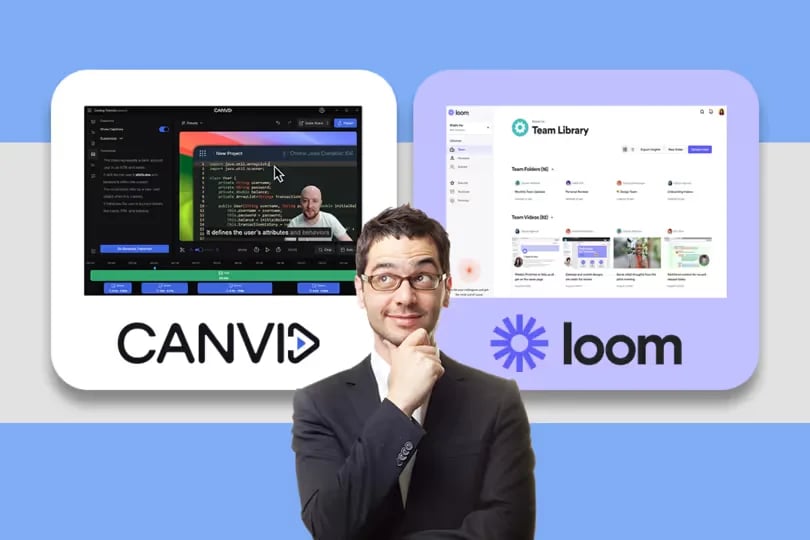
CANVID: Best Loom Alternative for Screen Recording

CANVID delivers crystal-clear 4K recordings with automatic and manual zooms, AI voice clarity, and instant captions, far beyond Loom’s plain captures.
  • Record screen and audio with automatic or manual zooms
  • Customize your webcam and blur or remove the background easily
  • Export high-quality video and save with flexible or lifetime plans
CANVID: Best Loom Alternative for Screen Recording

CANVID vs. Loom: At a Glance

This quick comparison looks at video quality, smart editing tools, webcam background control, and recording flexibility. It helps creators choose the best screen recorder for polished content.

Here is a quick comparison of key features:

FeatureCANVIDLoom
Advanced AI Background RemovalYesNo
Cloud platformYesYes
Lifetime licenseYesNo
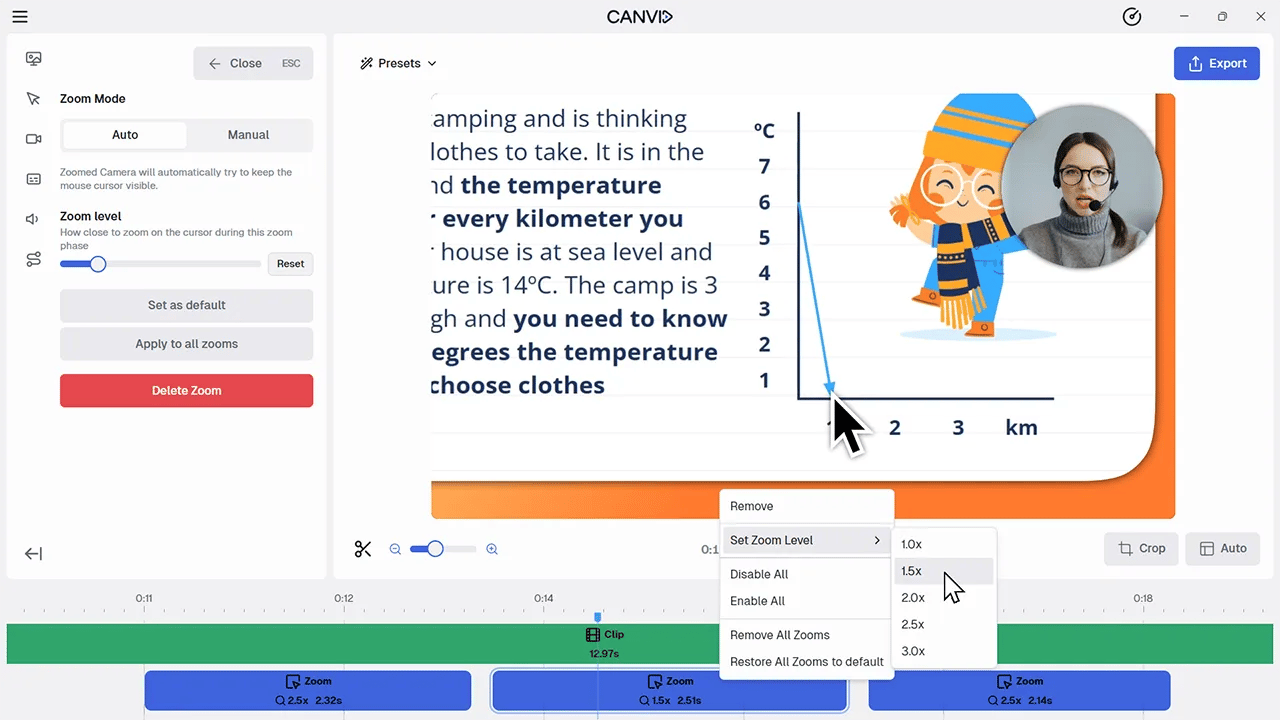
Automatic and manual zoomsYesNo
Chrome pluginNoYes

Feature Deep Dive: CANVID vs. Loom

Launch Speed: Get Started Fast

Loom’s Chrome plugin and tray access make it faster to launch. CANVID is currently launched from the desktop app (hotkey support is coming soon).

📌 Verdict: Loom is quicker to start. CANVID offers a more robust screen recording workflow.

Webcam Customization: Look the Way You Want

CANVID provides advanced webcam layout tools: resize, reposition, apply circle or rounded borders, and remove backgrounds with AI. No green screen needed. Loom only offers basic shapes and presets.

📌 Verdict: CANVID gives you complete visual control and a cleaner, more professional look.

Branding Presets: Save Your Style

CANVID offers reusable presets to instantly apply your preferred styles for consistent branding across videos.

Loom doesn’t have this feature.

📌 Verdict: CANVID improves team workflow with visual presets and branding automation.

Editing Tools: From Quick Fixes to Creative Polish

CANVID’s built-in online video editor includes trimming, layout adjustment, shadows, gradients, and more. It’s ideal for turning basic recordings into polished videos.

Loom focuses on quick edits like silence removal, with limited visual styling.

📌 Verdict: CANVID’s editor is ideal for creators who want polished results without third-party tools.

Audio & Noise Control: Clear and Balanced on Both Sides

Both support system and mic audio, with noise cancellation included. CANVID also ensures audio clarity during webcam recording.

📌 Verdict: Equal audio quality, but CANVID allows cleaner integration with visuals.

Transcript Editing: Cut Video by Editing Text

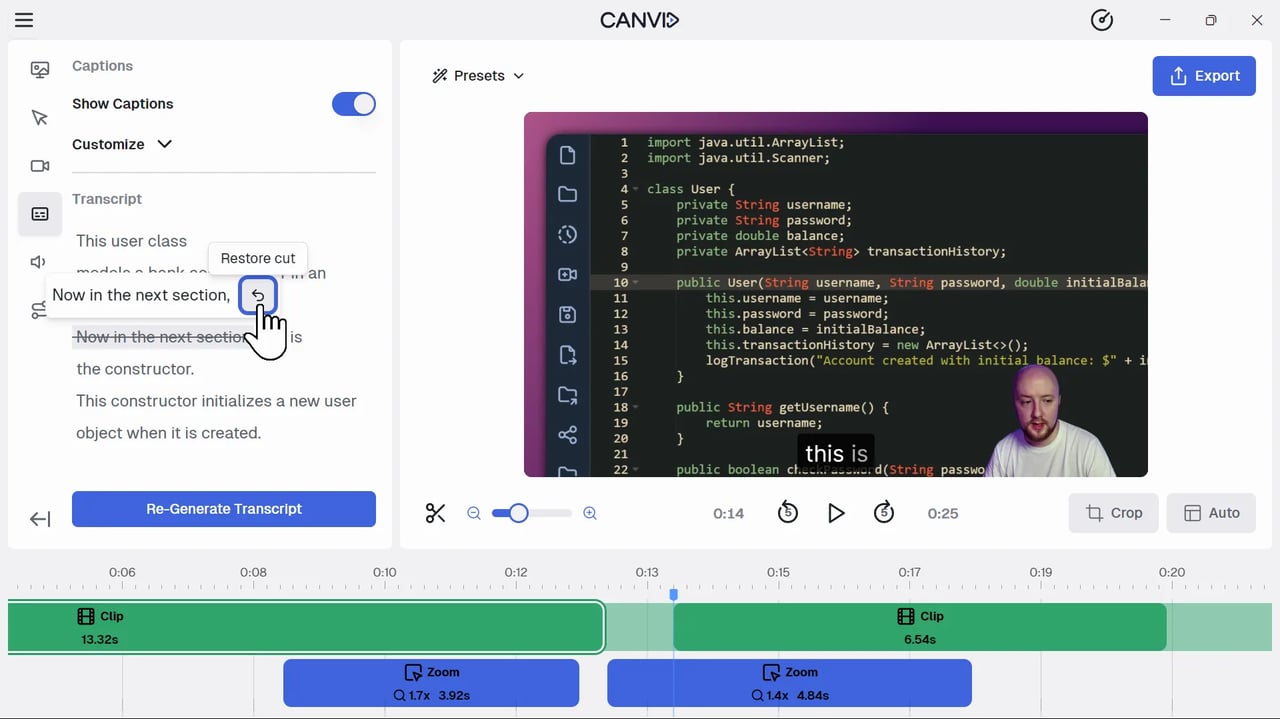
With CANVID, deleting words from your transcript cuts those segments from your video and audio automatically, making editing fast and intuitive.

Loom’s transcripts are editable for reading, but they don’t affect your video content.

📌 Verdict: CANVID saves serious time with true transcript-to-video editing.

Sharing & Video Cloud Storage

Loom supports cloud collaboration with comments, chapters, and summaries.

CANVID lets you share via link or download, with AI cloud features coming soon. Many users still prefer local downloads for privacy and flexibility.

📌 Verdict: Loom has stronger cloud tools. CANVID is better for local control and easy downloads.

Recording Controls & Aspect Ratios

CANVID supports pre- and post-recording window resizing, zooms, and multiple aspect ratios (16:9, 4:3, 1:1). Loom lacks zoom and has fixed sizing.

📌 Verdict: CANVID offers better framing and viewer control for screen capture.

CANVID vs. Loom: Feature Comparison Summary

FeatureCANVIDLoom
Advanced AI Background RemovalYesNo
Webcam Customization & VisualsGranular control, custom/blur backgrounds, post-recording positioningLimited presets, basic backgrounds, during-recording positioning only
Video Editing CapabilitiesFull editing suite, timeline, visual styling (padding, shadows, gradients)Basic trimming, limited features
Transcript FunctionalityTranscript edits cut video/audio automaticallyTranscript is editable but doesn’t affect video
Recording Control & ZoomResizable window (pre/post), auto/manual zoomFixed window, no zoom
Audio FeaturesSystem/mic audio, noise cancellationSystem/mic audio, noise cancellation
PresetsPost-recording style presetsNo preset functionality
Cloud Features & SharingLink sharing, direct download, basic cloud featuresAdvanced cloud tools, in-video comments, chapters
Starting Your RecordingDesktop app (hotkeys coming soon)Menu bar/tray app, Chrome plugin
Download & Video Quality4K exports, polished output, local download4K exports, sometimes appears ‘blank’
Licensing OptionsSubscription & Lifetime LicenseSubscription Only

Pros & Cons: The Honest Breakdown

Why Choose CANVID? (Pros)

  • Superior Webcam Customization & Visual Polish: CANVID offers superior webcam control (size, shape, position) with custom/blur backgrounds, quality AI removal, and post-production styling (padding, gradients), ensuring a far more professional look than Loom’s presets.
  • Robust Video Editing & Transcript Integration: CANVID's powerful editing includes essential tools plus game-changing transcript-to-video editing: delete transcript text to automatically cut video, a time-saver Loom lacks.
  • Advanced Recording Control & Output Quality: Achieve precise framing with CANVID's window resizing (to aspect ratios, pre/post-recording) and dynamic zooms. Crisp 4K exports avoid the 'blank' look of basic recordings.
  • Direct Local Downloads & Content Sovereignty: Download videos directly to your computer with CANVID, bypassing mandatory cloud uploads. Ideal for privacy, offline access, and full content control.
  • Flexible & Fair Licensing: CANVID offers both subscription plans and a lifetime license option, providing significant long-term value and predictability that Loom’s subscription-only model lacks.

Considerations for CANVID (Cons/Trade-offs)

  • Recording Initiation: Currently, CANVID requires opening the desktop app to record, unlike Loom's quicker menu bar/tray access; however, CANVID plans hotkeys for faster starts.
  • Developing Cloud Features: Loom's in-platform cloud collaboration (comments, chaptering) is more mature. CANVID is developing these, currently excelling in direct creation, sharing, and content ownership.

What Loom Offers (Pros)

  • Mature Cloud Collaboration & Sharing: Loom excels with mature cloud features for team collaboration: in-video comments, chapters, summaries, and easy link sharing within its ecosystem.
  • Quick Start & Accessibility: Loom enables instant recording via its macOS menu bar, Windows system tray, or Chrome plugin, ideal for quick, impromptu captures.

Limitations of Loom (Cons/Trade-offs)

  • Highly Limited Webcam & Visual Controls: Loom's webcam customization is basic (preset sizes/shapes, mediocre background options), often resulting in a less polished on-screen appearance.
  • Restrictive Video Editing Capabilities: Loom’s native editing is minimal and suitable only for basic trims, frequently requiring users to seek external editing tools.
  • Lack of Advanced Recording Controls & Output Polish: Loom lacks advanced recording controls like dynamic zoom or custom window resizing. Consequently, its recordings can appear 'blank' or less engaging than CANVID's.
  • Subscription-Only Licensing: Loom does not offer a lifetime license, potentially leading to higher long-term costs for continuous users.

The Final Verdict: Which Is Right for You?

When quality, customization, and professional polish matter most, CANVID is the clear choice. If you need advanced webcam styling, AI-driven background removal, dynamic zooms, transcript-linked editing, and 4K exports with full local downloads, CANVID delivers unmatched control and output quality.

However, if you prioritize in-platform collaboration features (like in-video comments, chapters, AI-powered summaries) and want instant access via a Chrome plugin or menu-bar applet, Loom may suffice for lightweight, quick-sharing needs.

  • Choose CANVID if: You’re a content creator, educator, marketer, or support professional who demands highly polished screen recordings and full ownership of your files.
  • Choose Loom if: Your team relies heavily on cloud-based review workflows, quick browser captures, and built-in collaboration features, and 720p delivery meets your needs.

Frequently Asked Questions

Got questions about CANVID? You're not alone. Below you'll find answers to the most common questions about CANVID's features, how it compares to Loom, and how it fits into your workflow.

Explore more alternatives

CANVID: Best Screen Studio Alternative for Windows
Screen Studio
CANVID is the best Screen Studio alternative for Windows and Mac with auto-zooms, transcript editing, and AI tools that speed up video edits.
CANVID: Professional Alternative to Focusee for Screen Recording
FocuSee
CANVID turns screen recordings into crisp 4K videos with AI zoom, clear audio, and pro editing tools, offering more than Focusee for creators and teams.
CANVID: Best Loom Alternative for Screen Recording
ScreenPal
Discover why CANVID is the top ScreenPal alternative for creators and teams. Make standout videos with polished visuals, and fast 4K exports.

See the difference yourself today!