CANVID: ScreenPal Alternative for Teams and Content Creators

Discover why CANVID is the top ScreenPal alternative for creators and teams. Make standout videos with polished visuals, and fast 4K exports.
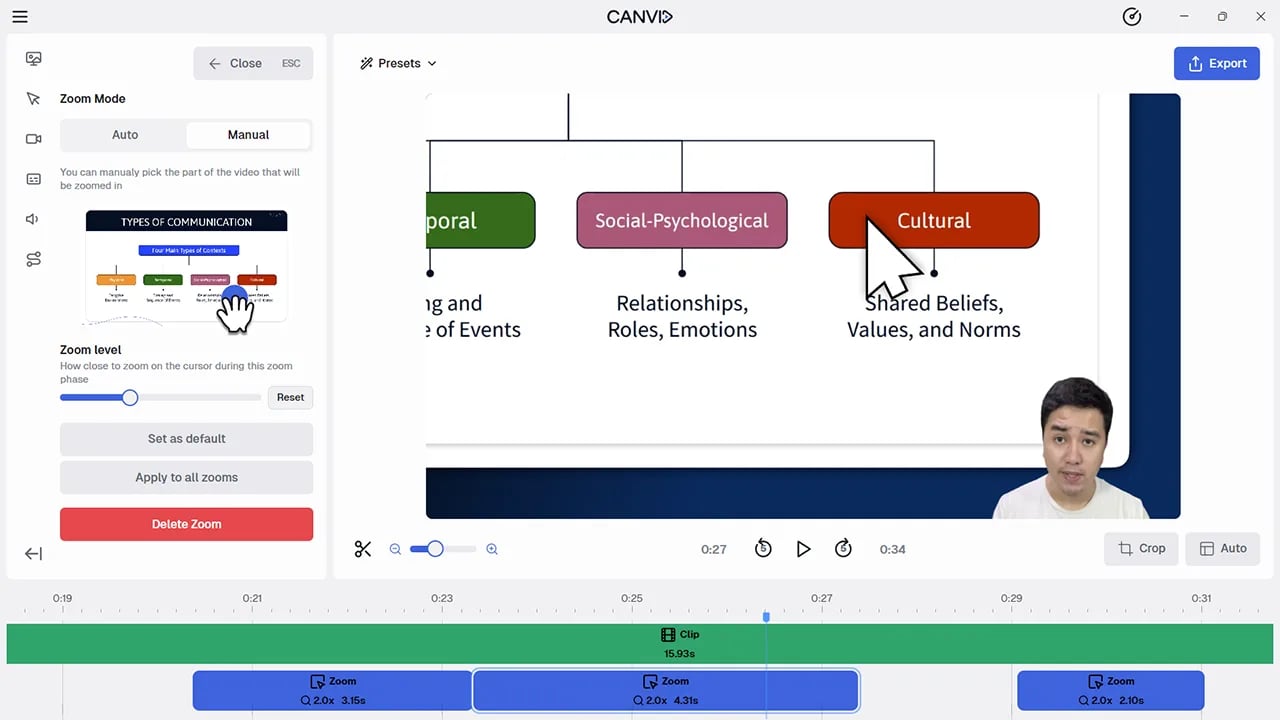
  • Zoom in on key actions automatically or manually
  • Customize background, corners, shadows, and size
  • Subscribe or buy once with lifetime access
CANVID: Best Loom Alternative for Screen Recording

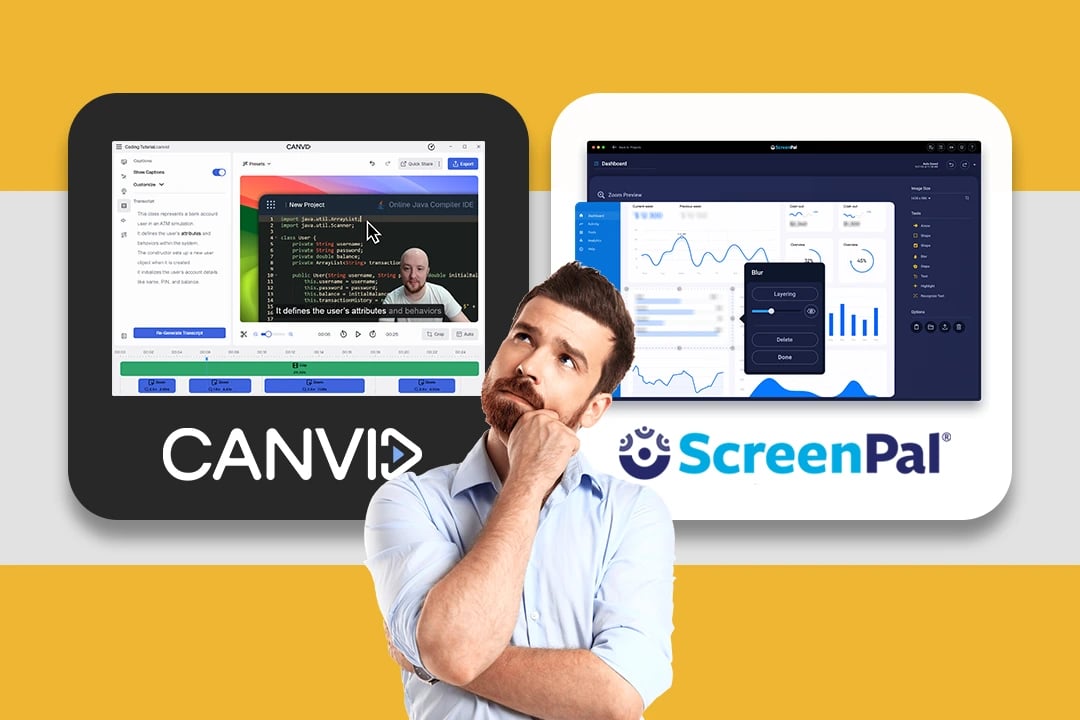
CANVID vs. ScreenPal: Key Differences

While both CANVID and ScreenPal offer screen recording tools, they serve different needs. ScreenPal focuses on education, with features like quizzes, polls, and live annotation suited for classroom use. CANVID, in contrast, has no limits. It adapts to a wide range of use cases such as product demos, tutorials, internal training, marketing content, and online courses. Its high-quality output, fast editing tools, and flexible sharing options make it a strong choice for professionals, educators, and teams in many industries.

Quick feature highlights for easy comparison:

FeatureCANVIDScreenPal
Lifetime licenseYesNo
Automatic and manual zoomsYesNo
Quizzes and pollsNoYes
Annotation tools (during recording)NoYes
Output quality★★★★★★★☆☆☆

ScreenPal vs. CANVID: Feature Comparison Guide

Webcam Customization and Visuals: Shaping How You Appear On Screen

CANVID and ScreenPal both let you appear on camera, but the level of control varies significantly.

ScreenPal supports basic webcam placement and allows drawing or annotating during a recording. However, it lacks any background customization tools.

CANVID, by contrast, focuses on visual control and polish. It allows you to blur or remove your webcam background without a green screen, and style your webcam frame with rounded corners, and more. These features help presenters stand out without visual clutter.

📌 Verdict: ScreenPal is fine for simple webcam use. CANVID gives you far more flexibility in how you present yourself on screen.

Video Editing Capabilities: Two Different Approaches

CANVID and ScreenPal both offer post-recording editors, but their philosophies are fundamentally different.

ScreenPal leans toward a full video editing suite. You can add annotations and overlays, freeze frames, insert additional clips, narrate after recording, adjust pacing, and hide parts of your video. It’s closer to a lightweight editor than a streamlined recorder, which gives users a wide range of tools but can also lead to more time spent on post-production.

CANVID, by contrast, focuses on minimizing editing. Its goal is to deliver polished results with as little intervention as possible. It focuses on speed and consistency, offering presets and intuitive tools that help users produce clean, professional videos without spending time on complex edits.

📌 Verdict: ScreenPal offers more features for those who want to fine-tune every detail. CANVID aims to reduce the need for editing by helping users get a strong result from the start.

Branding Presets: Consistency Without Rework

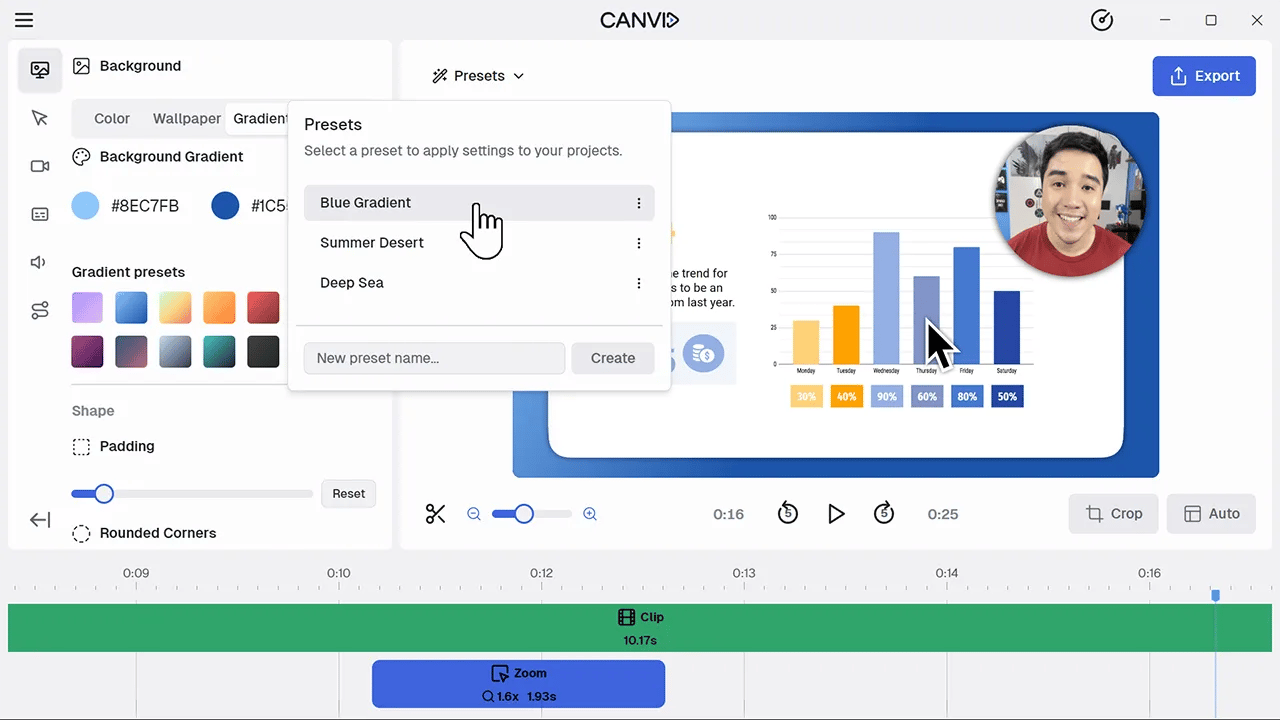
CANVID lets you create and reuse presets that define your webcam layout, background style, video framing, and more. This helps maintain a consistent look across videos, whether you're working solo or with a team. You can apply a preset to a new project in seconds, reducing setup time and avoiding repetitive adjustments.

ScreenPal does not offer a preset system. Each recording must be styled manually.

📌 Verdict: CANVID simplifies your workflow and keeps your branding consistent from one video to the next.

AI and Advanced Features

Compare the AI-powered tools that help CANVID and ScreenPal deliver professional-quality videos.

FeatureCANVIDScreenPal
Auto Background Removal
AI Captions
AI Q&A
Voice Cleanup

ScreenPal includes more AI-driven interactivity like Q&A, while CANVID focuses on visual clarity and audio cleanup.

📌 Verdict: CANVID’s AI tools are better for polished visuals and sound, while ScreenPal suits those needing interactive features.

Interface & Usability: Simplicity vs. Complexity

CANVID was designed with clarity in mind. Every button, menu, and option serves a focused purpose. From recording setup to export, the interface is clean and deliberate. Everything is easy to find and intuitive to use. The result is a smooth experience where users can focus on the message, not the controls.

ScreenPal, on the other hand, takes the approach of a full video editor that happens to include screen recording. Its interface reflects that complexity. The layout can feel crowded, and even experienced users may struggle to locate basic recording settings. This is not a flaw but a different philosophy. ScreenPal is built for deeper post-production, not quick capture.

📌 Verdict: CANVID keeps things simple by design, helping users create professional content without getting lost in menus. ScreenPal offers more editing tools, but at the cost of clarity and ease of use.

CANVID vs. ScreenPal: Feature Comparison Summary

FeatureCANVIDScreenPal
Webcam Styling & LayoutRounded corners, shadows, border, gradients, position after recordingResize and move during or after recording, no advanced styling
Video Editing CapabilitiesTrim, zoom, layout styling, presets, polished UIRich editor with annotations, overlays, pacing tools, multi-clip timeline
Zoom FunctionalityAuto and manual zooms, adjustable intensity, previewableNo zoom support
Recording FlexibilityCustom recording area, aspect ratio presets, pre/post adjustmentsPartial screen or full screen, more rigid capture modes
Audio FeaturesMic/system audio, noise removalMic/system audio, narration in post, music import
PresetsReusable style presets for webcam layout and visualsNo preset system
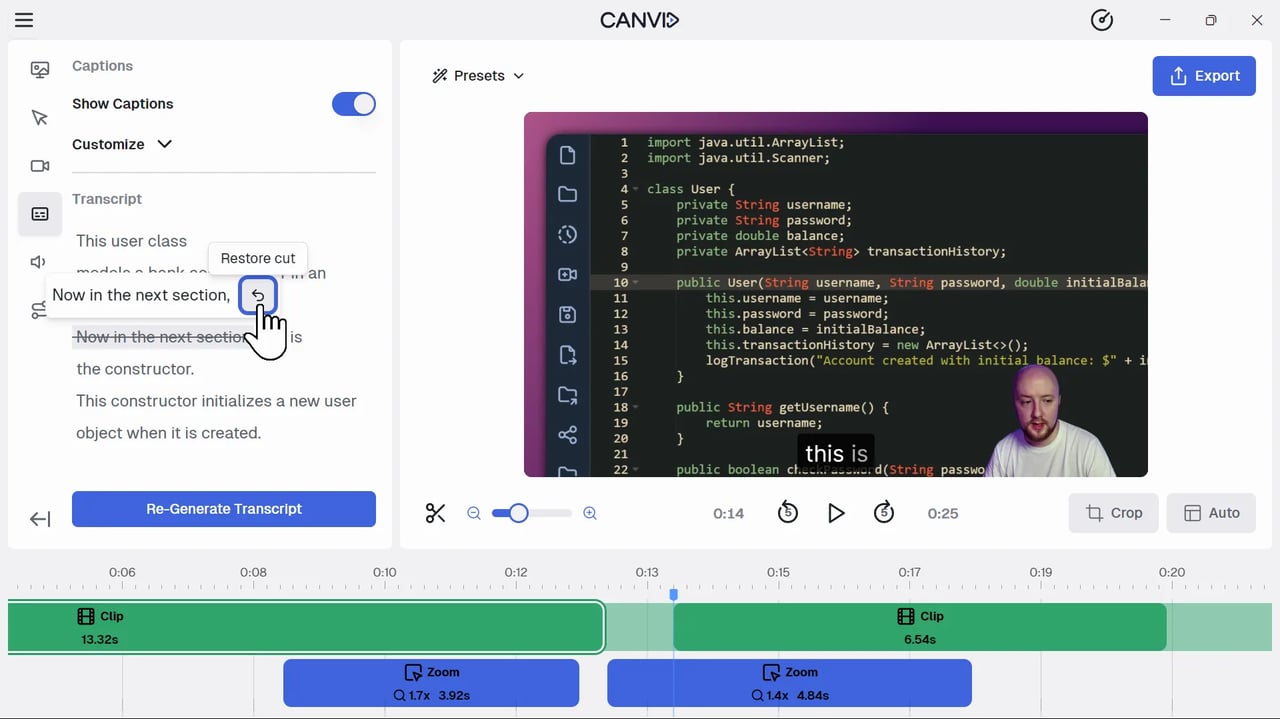
Transcript EditingEdit transcript to cut video/audioTranscript view only, no connection to timeline
Annotations & InteractivityNoneAnnotations, quizzes, polls, overlays, live drawing during recording
Cloud Features & SharingQuick link sharing, downloads, basic cloudCloud video hub, in-video CTAs, quizzes, analytics, heatmaps
Ease of UseClean, focused interface, minimal editing requiredFeature-rich but complex, steeper learning curve
Download & Video Quality4K exports, clean output, fast rendering4K exports, quality may vary based on settings
Licensing OptionsMonthly, yearly, or lifetime licenseMonthly and yearly subscriptions only

Strengths and Trade-Offs: A Clear Comparison

Why Choose CANVID? (Pros)

  • Superior Webcam Customization & Visual Polish: CANVID offers advanced webcam styling, including rounded corners, borders, drop shadows, and AI-powered background removal or replacement. You can create a polished, professional look that ScreenPal does not support.
  • Streamlined Recording and Editing Workflow: Every feature in CANVID is designed to save time. You get automatic and manual zoom, aspect ratio presets, and fast editing tools focused on keeping your process simple.
  • Consistent Branding with Presets: Reusable presets let you apply the same styles across projects in one click. This is ideal for teams or creators who want a uniform look without reconfiguring settings every time.
  • Flexible Recording Controls & Output Quality: Record in 4K with full control over framing, window size, and layout. CANVID's recording stays crisp and ready to share without needing heavy post-production.
  • Subscription or Lifetime Licensing: You can subscribe monthly or yearly, or choose a lifetime license that avoids ongoing costs.

Considerations for CANVID (Cons/Trade-offs)

  • Simplified Editing Philosophy: If you want deep timeline editing, annotations, quizzes, and multi-track overlays, CANVID will feel limited compared to ScreenPal. It is built to minimize editing, not replace a full editor.
  • Developing Cloud Collaboration: While you can share and download easily, CANVID's cloud tools are simpler than ScreenPal’s advanced in-video quizzes and analytics.

What ScreenPal Offers (Pros)

  • Full Video Editing Suite: ScreenPal is closer to a complete video editor. You can add annotations, overlays, quizzes, polls, narrate over recordings, freeze frames, and insert clips. This provides creative flexibility without external tools.
  • Rich Interactivity for Education: Built-in quizzes, polls, and drawing tools are ideal for teachers and trainers who need more engagement in their videos.
  • Robust Cloud Platform & Analytics: ScreenPal includes detailed viewer analytics, heatmaps, and advanced sharing features that go beyond simple downloads.

Limitations of ScreenPal (Cons/Trade-offs)

  • Complex and Confusing Interface: With so many features packed into one platform, even experienced users may struggle to find basic controls or understand recording options.
  • Limited Webcam Background Customization: ScreenPal does not offer background removal, blurring, or replacement. Your webcam overlay remains basic.
  • No Lifetime License: ScreenPal requires an ongoing subscription. There is no option to buy it outright for lifetime access.

The Final Verdict: Which Is Right for You?

When you value clear workflows, high-quality output with minimal editing, and advanced webcam styling, CANVID is the best choice. It keeps your process efficient and helps you deliver polished results without unnecessary complexity.

If you prefer an all-in-one editing platform with interactive tools, quizzes, and rich cloud analytics, and you don’t mind a steeper learning curve, ScreenPal is better suited to those needs.

Choose CANVID if: You want streamlined recording, polished visuals, and the ability to own your software outright with a lifetime license.

Choose ScreenPal if: You need deep editing tools, interactive features for education, and a built-in platform to host and analyze your videos.

Frequently Asked Questions

Curious about CANVID? This section covers the key questions users have about its features and how it fits into your content process.

Explore more alternatives

CANVID: Best Screen Studio Alternative for Windows
Screen Studio
CANVID is the best Screen Studio alternative for Windows and Mac with auto-zooms, transcript editing, and AI tools that speed up video edits.
CANVID: Best Loom Alternative for Screen Recording
Loom
CANVID delivers crystal-clear 4K recordings with automatic and manual zooms, AI voice clarity, and instant captions, far beyond Loom’s plain captures.
CANVID: Professional Alternative to Focusee for Screen Recording
FocuSee
CANVID turns screen recordings into crisp 4K videos with AI zoom, clear audio, and pro editing tools, offering more than Focusee for creators and teams.

See the difference yourself today!