Transcript Editing
Turn spoken words into editable text
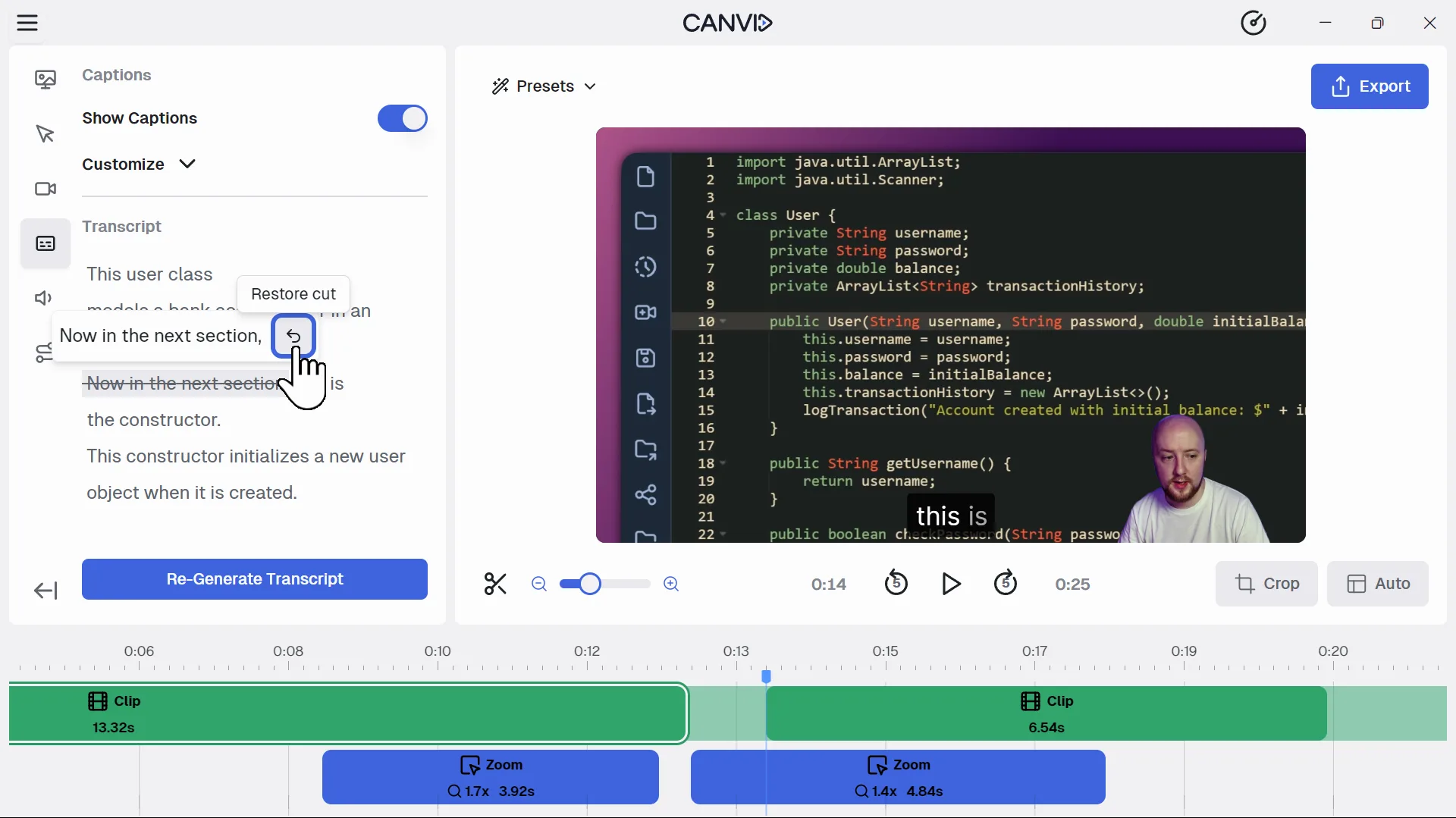
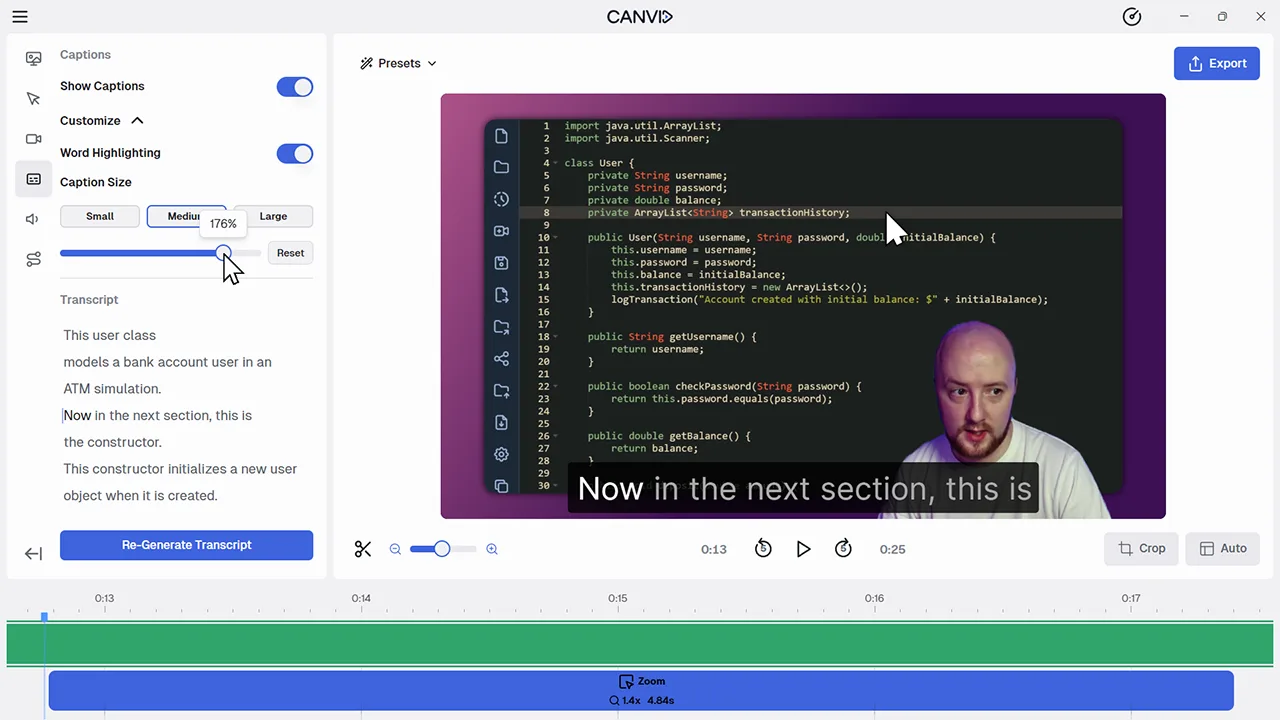
Transcript Editing converts the spoken audio in your screen recordings into an editable transcript. You can fix errors, search through the text, and export it for use anywhere. This makes it easy to generate a transcript from video without typing it out manually.
Transcripts make your videos more accessible and easier to work with. You can search through your content, share quotes, and reuse what you've recorded in articles or social posts. It's also a helpful way to get a transcript from video for documentation or SEO.
Frequently Asked Questions
After recording, open the Transcript tab in CANVID and click "Generate Transcript." AI will automatically convert your screen recording audio into text.
You can copy your transcript as plain text or SRT subtitle files, depending on how you want to use it.
Yes. You can create a transcript from videos recorded in CANVID and then use the transcript on platforms like YouTube.
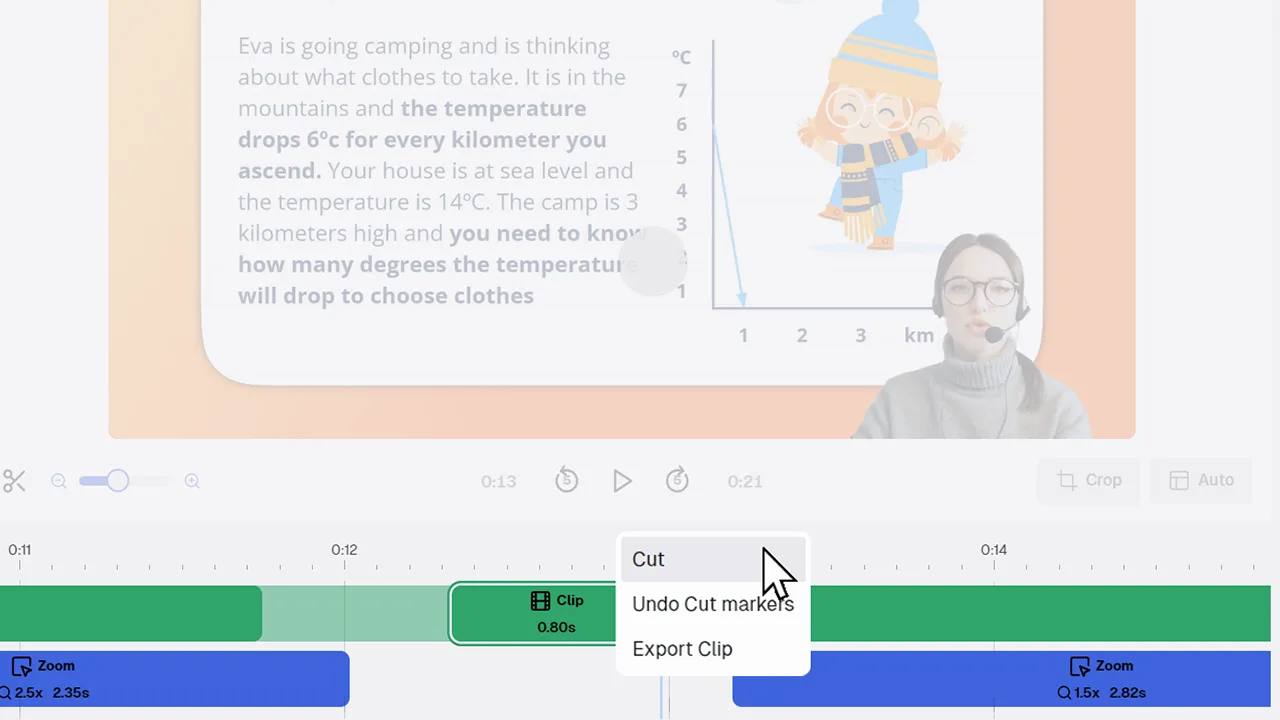
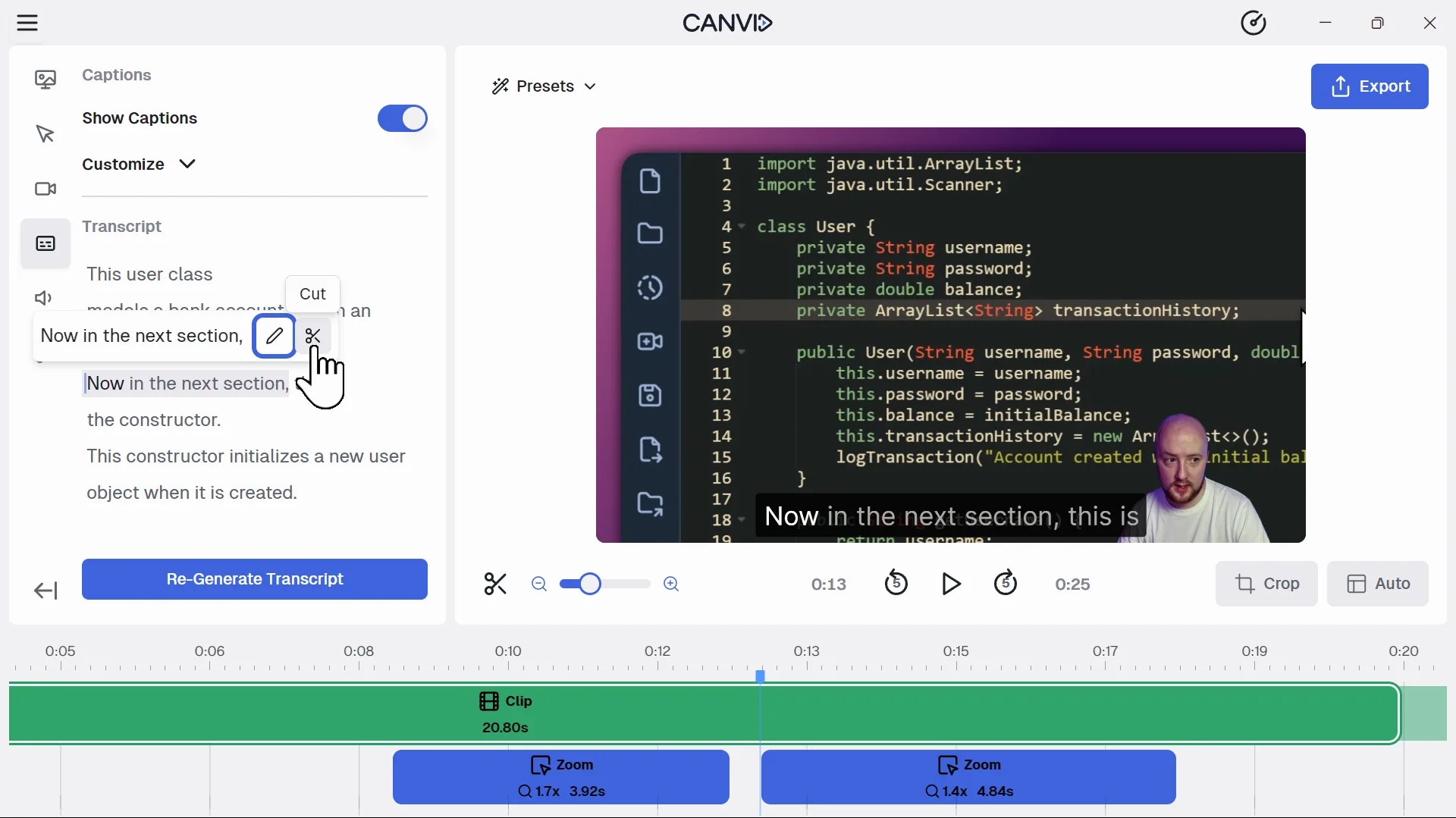
Yes. You can search for any word or phrase and jump to that exact moment in your video timeline. You can even cut parts of your video using the transcript.