Audio Capture
Crystal-Clear Audio, No Hassle
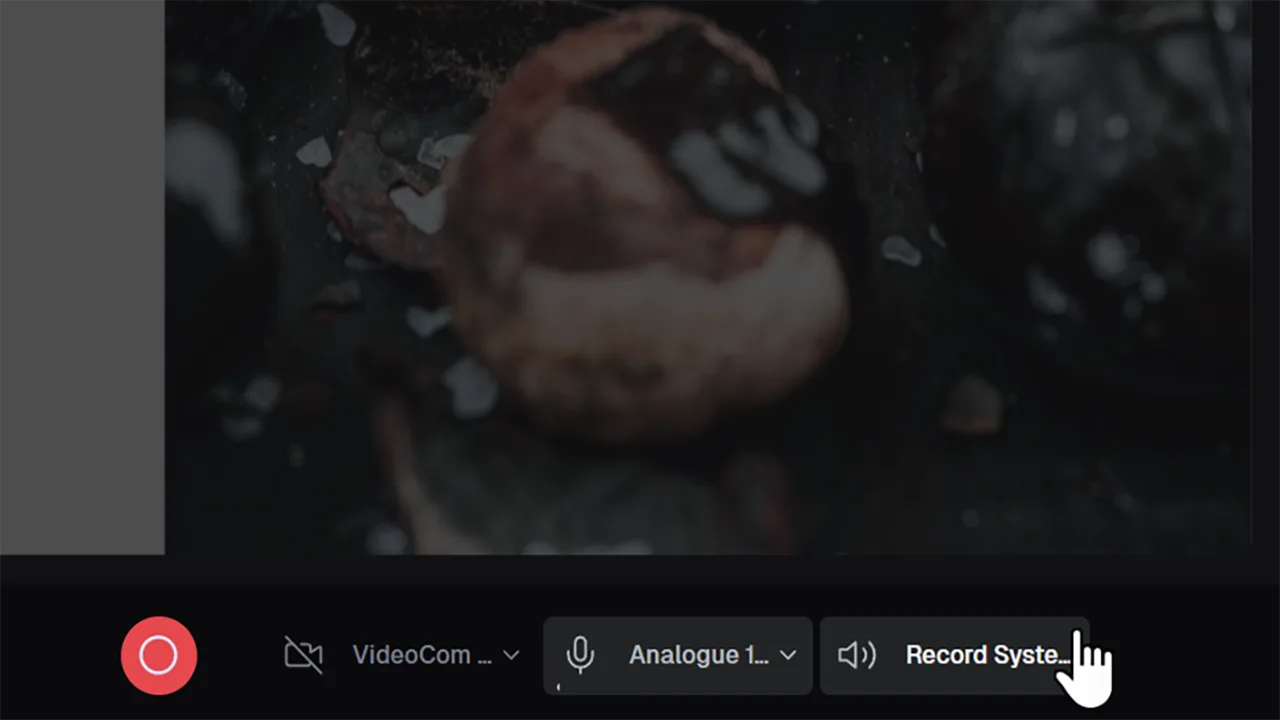
Audio Capture lets you record sound from both your microphone and your computer's system audio at the same time. Whether you're narrating tutorials, capturing in-app sounds, or recording a podcast, your audio stays perfectly synchronized with your screen recording.
Great audio makes your screen recordings more engaging and professional. With CANVID, you can capture your voice and system audio in one take. This is perfect for how-to videos, live demos, or any content where clear, synced audio matters.
Frequently Asked Questions
Yes. CANVID can capture both mic input and system sound in sync, so your voice and app sounds are recorded together without needing extra tools.
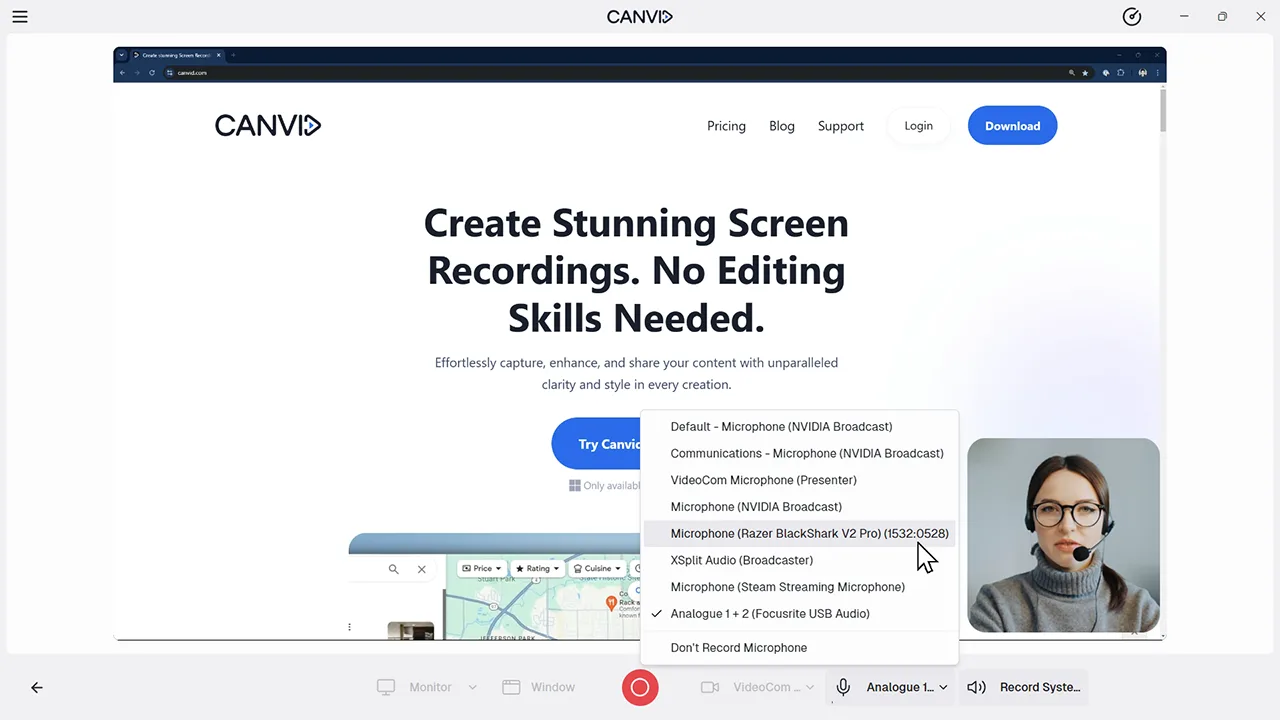
Before starting your screen recording, go to the audio settings in CANVID and make sure both microphone and system sound are turned on. This works on both Mac and Windows.
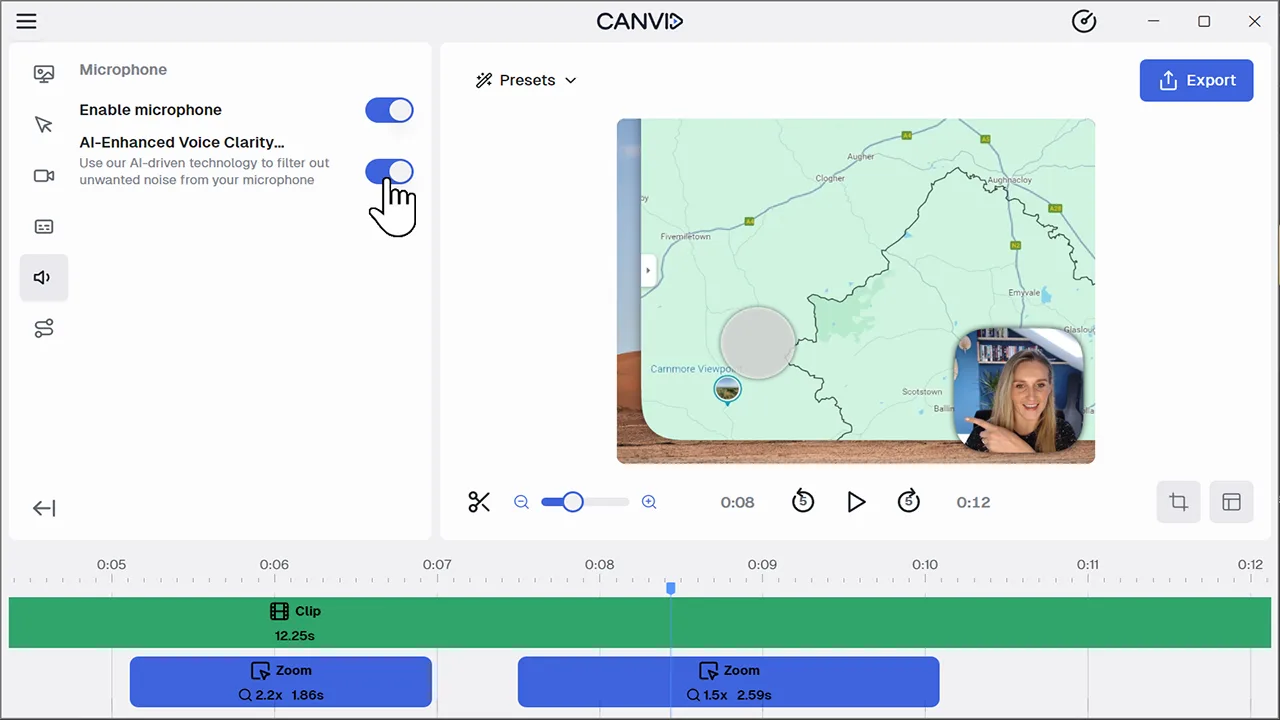
Yes. You can enable AI-Enhanced Voice Clarity to reduce background noise and boost vocal clarity in real time.
Turn on Voice Clarity to remove echo, fan noise, and other distractions so your voice stays clean and focused.
Explore More Features