AI Voice Clarity
Clean Mic Audio, Every Time
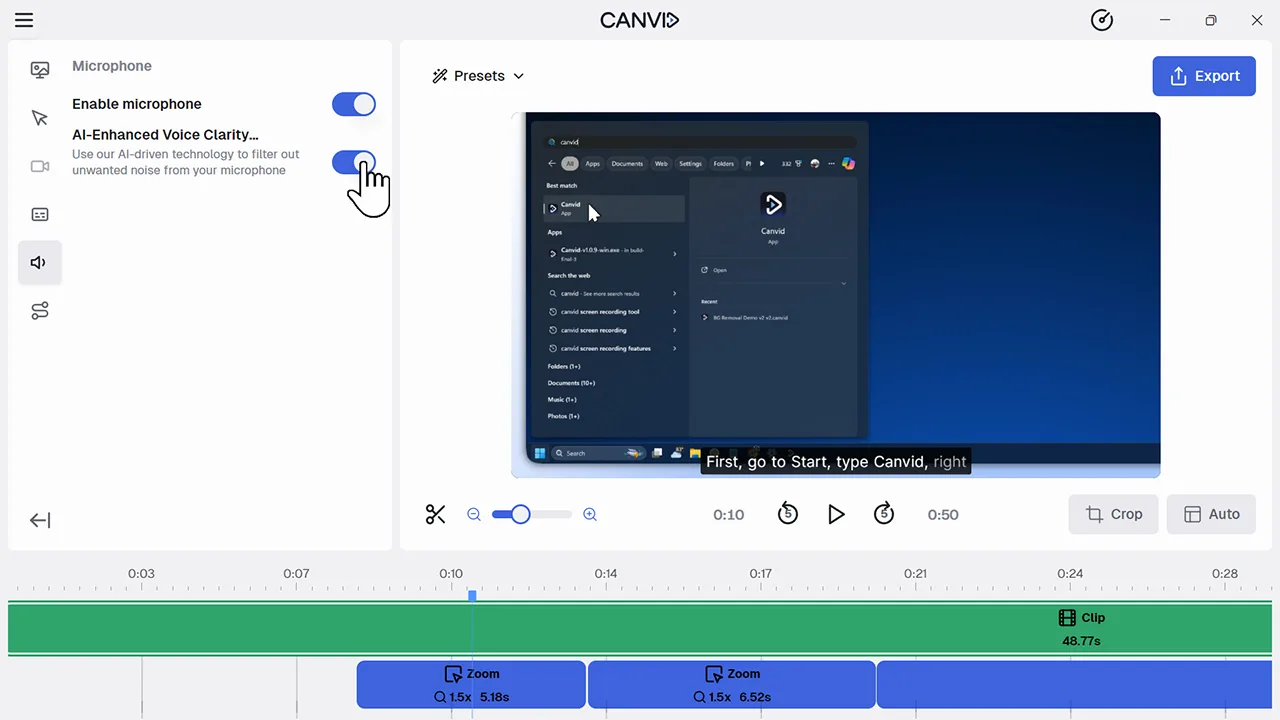
AI Voice Clarity uses smart noise reduction to automatically remove background sounds like keyboard clicks, fan noise, and echo from your mic track. Your voice is enhanced, not distorted, for a polished result every time.
Noisy environment? No problem. AI Voice Clarity gives you studio-grade audio without acoustic treatments or expensive mics. It's ideal for screen recording audio, tutorials, and live demos giving viewers clearer speech and reducing distractions.
Frequently Asked Questions
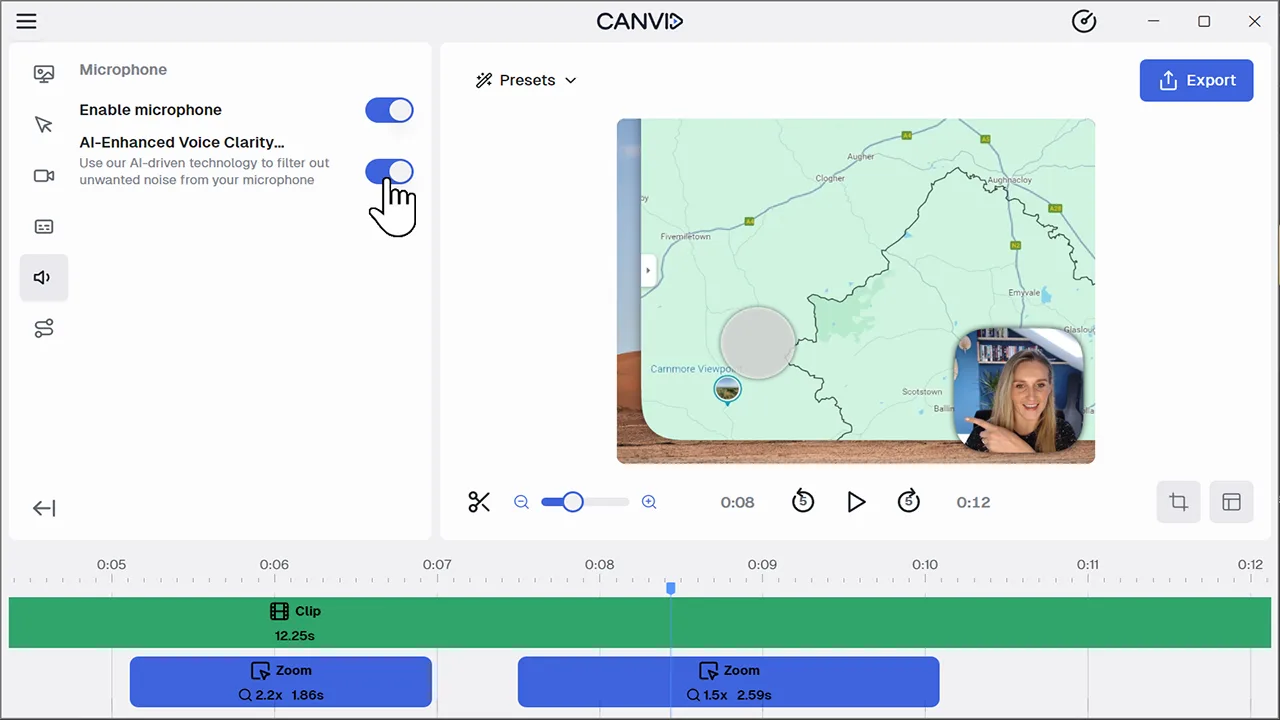
Open the Audio settings in the editor and toggle AI Voice Clarity. It starts removing background noise immediately.
Yes. AI Voice Clarity only affects your microphone track, so system audio and app sounds remain untouched.
No. The AI focuses solely on reducing background noise like fans, chatter, echo, and static. Your voice tone and clarity remain unchanged.
No, there's no noticable impact when enabling AI Voice Clarity and it works in real time!