Timeline Controls for Effortless Editing
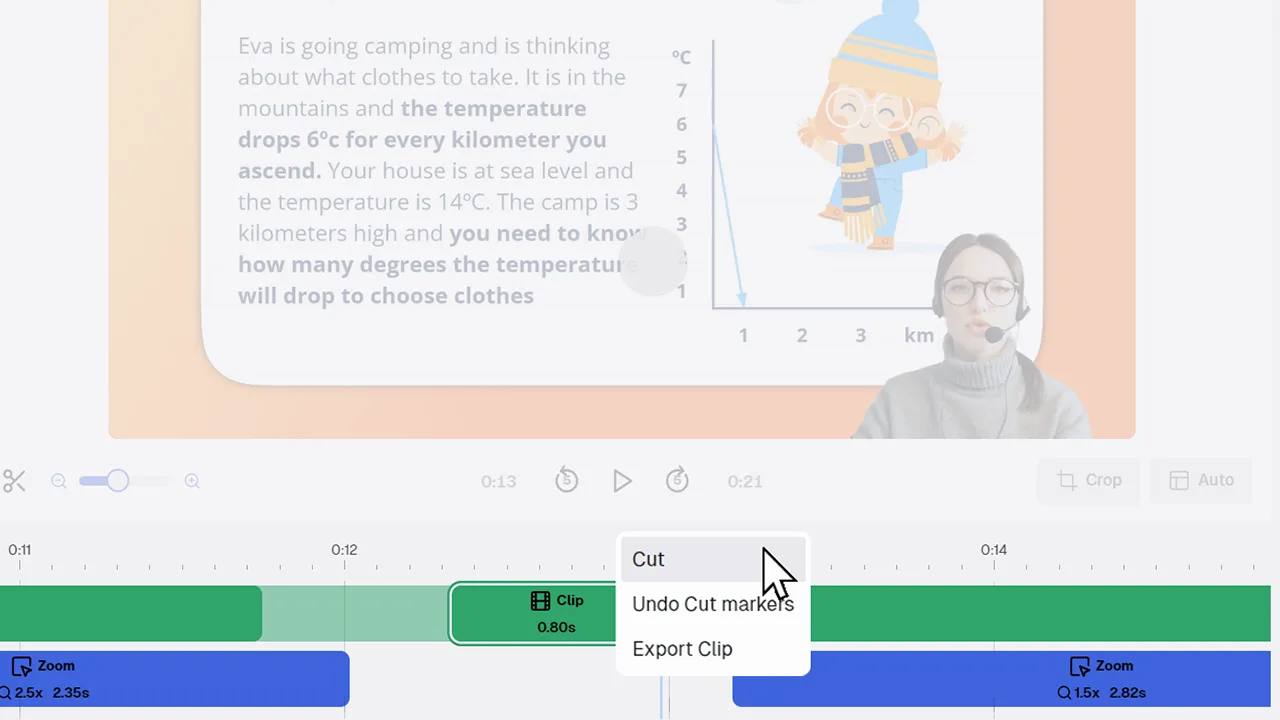
Powerful timeline navigation for polished video editing
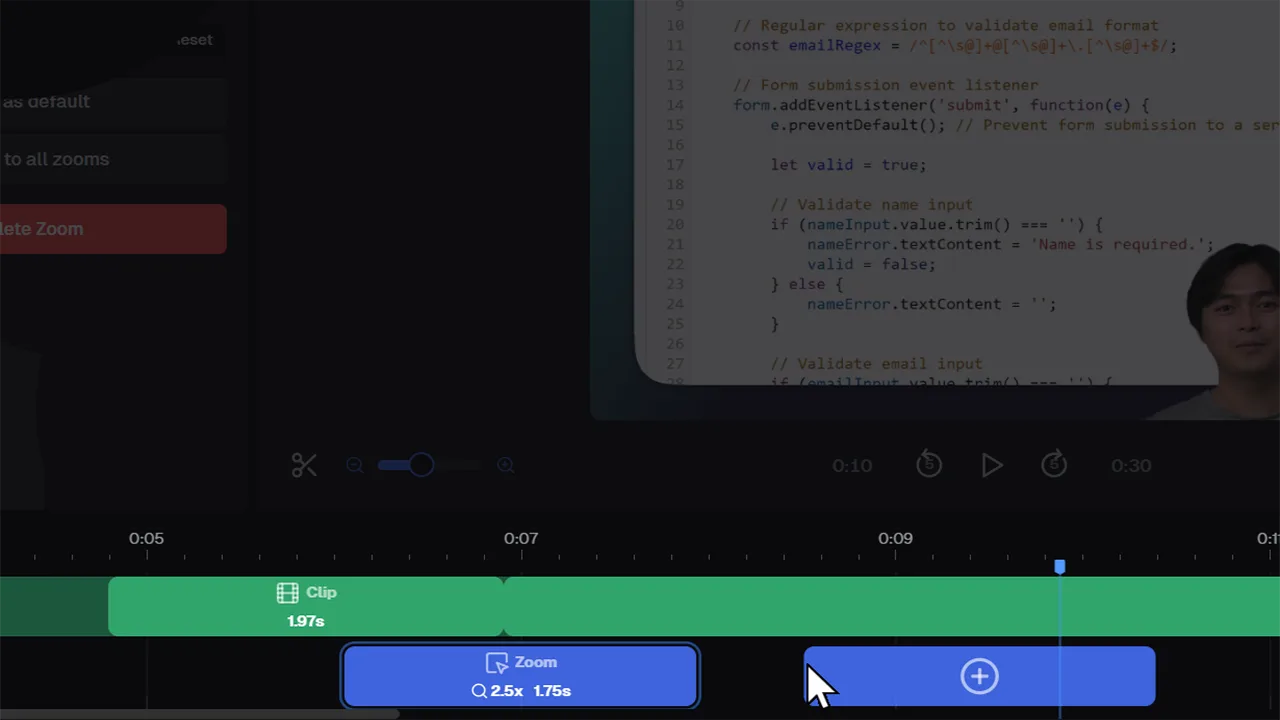
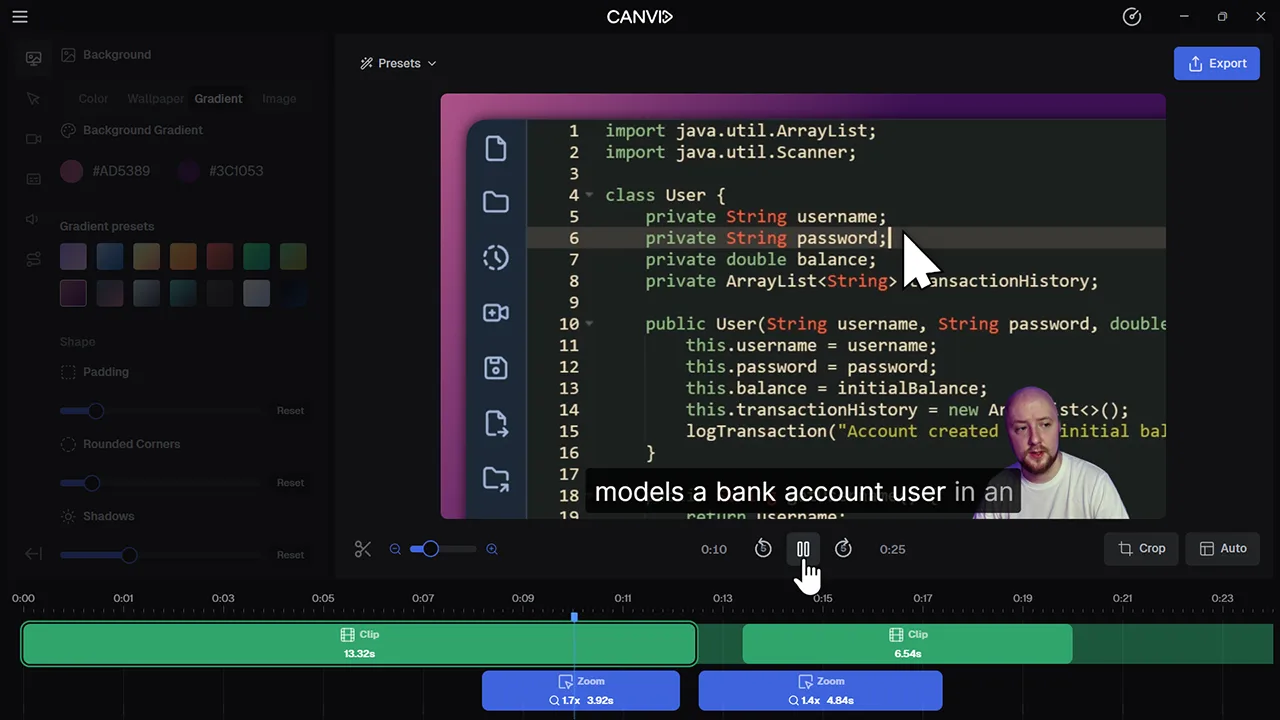
Our timeline control shows your screen recording as segments on a track. You can split clips at precise moments, trim unwanted sections, and zoom the timeline view to focus on specific details.
Instead of jumping between tools, use the timeline to fine‑tune your video with clarity. Snap to the exact moment, remove mistakes, and see your edits play back immediately. Streamlining the editing flow and boosting quality.
Frequently Asked Questions
Place the playhead where you want the cut, then click the split clip icon. That splits the clip into two separate segments. You can also use the keyboard shortcut 'S'.
Yes. Use the zoom slider or scroll controls to zoom in for more precise editing or zoom out to see the full screen recording timeline at a glance.
Absolutely. Trim, split or remove clips and watch the preview update instantly, so you always see your edits in real time.
Explore More Features