Screen, Window, & Region Recording
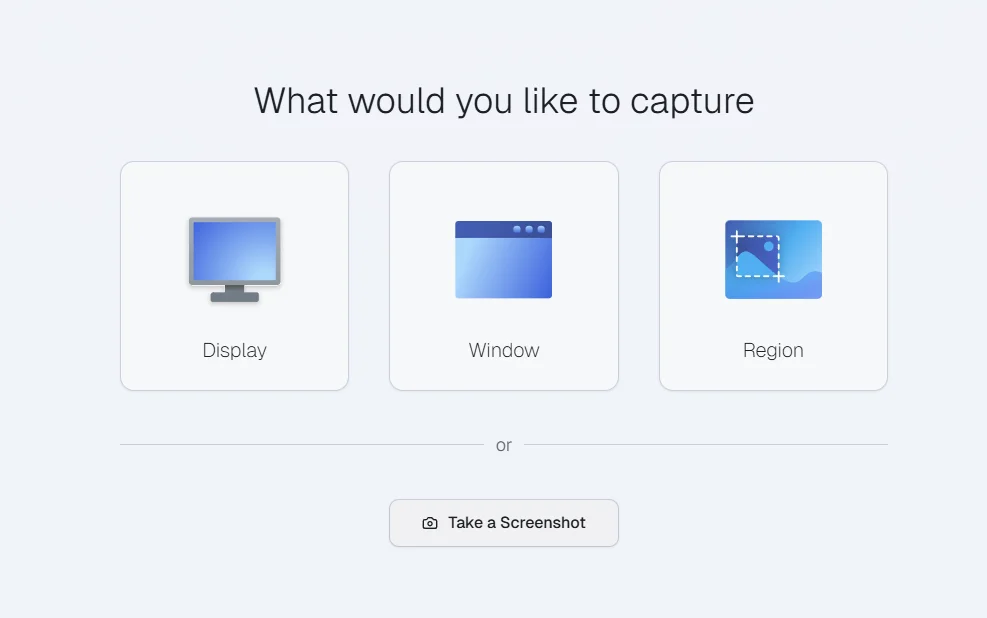
Capture exactly what matters
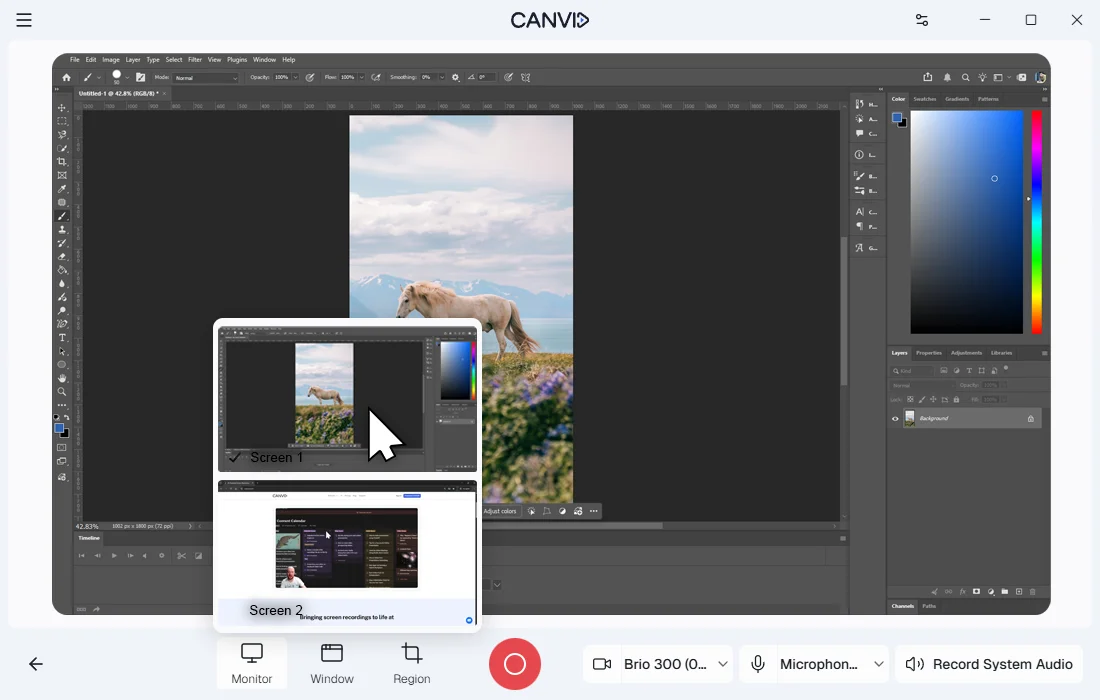
CANVID lets you capture either your entire screen, including all apps and browser tabs, or just a single application window. Window capture is ideal for focused demos, while full-screen capture is better for workflows that involve switching between apps.
Use window capture for clean and distraction-free tutorials. Use full-screen capture when you want to record app switching, meetings or multi-window workflows. Both modes support mic and system audio to give you full control over your screen record with audio.
Frequently Asked Questions
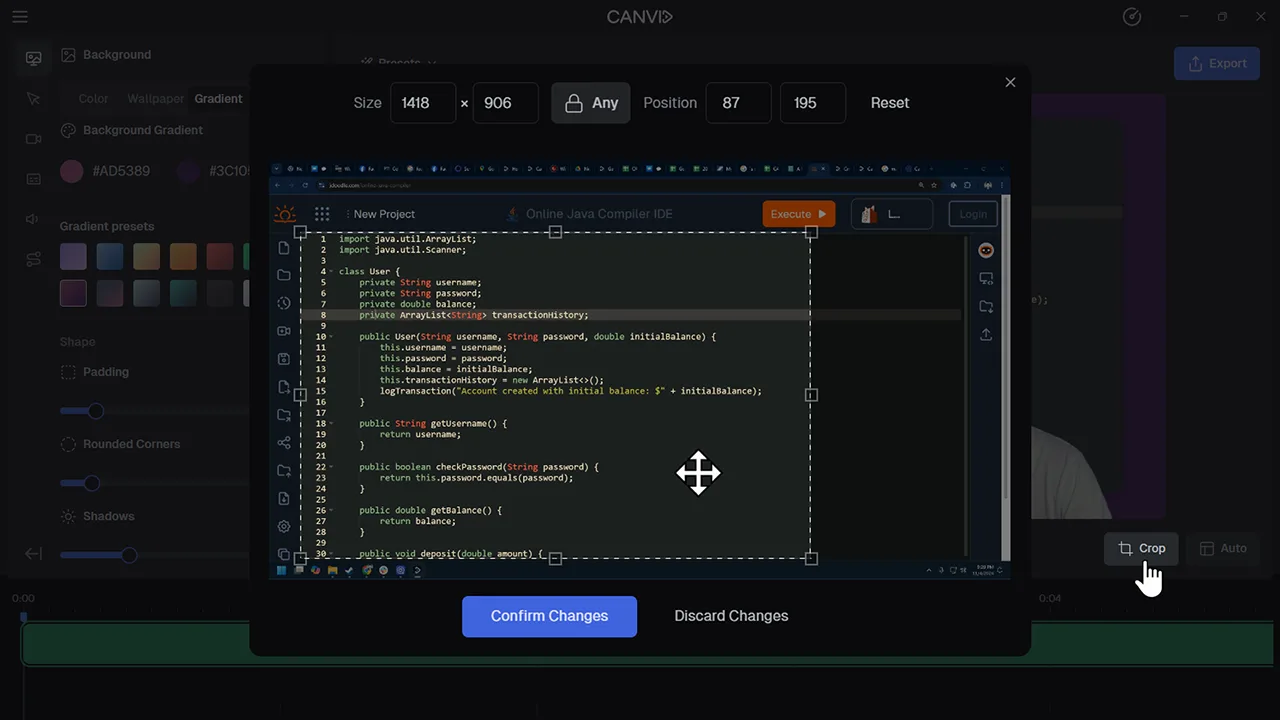
Window capture records a specific app or window, full-screen capture records everything visible on your screen, while region capture lets you record only a selected area of your screen.
If the current window is minimized or closed, the recording may pause or freeze until it returns. For continuous recording across multiple apps, full-screen mode is recommended.
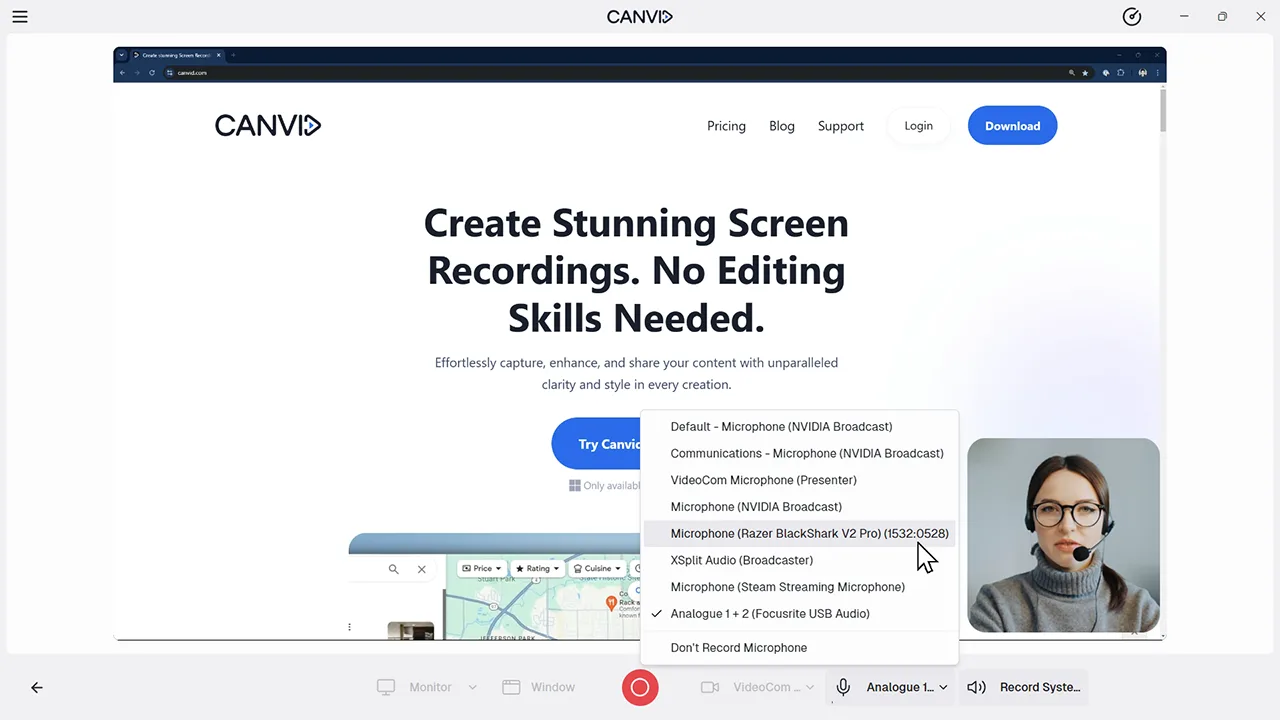
Yes. Both display and window capture allow you to record system and mic audio simultaneously, either before recording or after.
Yes. Window, Region, and full-screen capture with audio work on both Mac and Windows platforms.