Export Videos & GIFs
Choose the best format for your audience
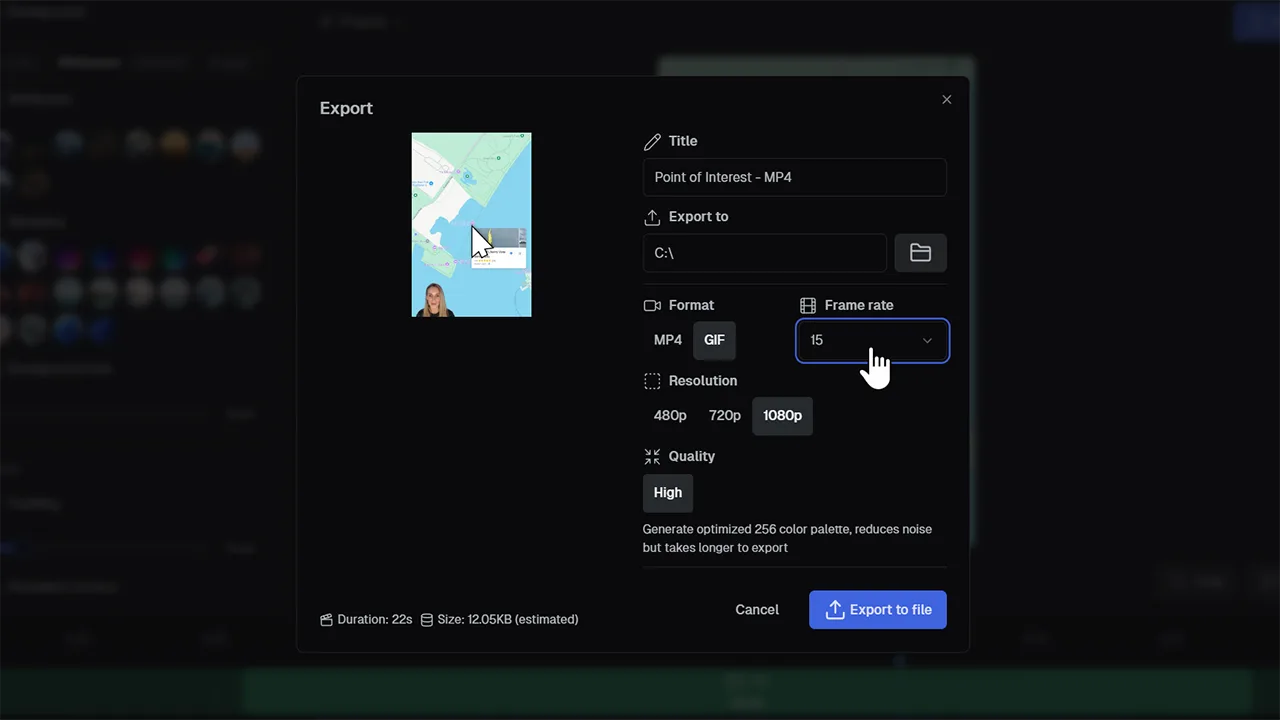
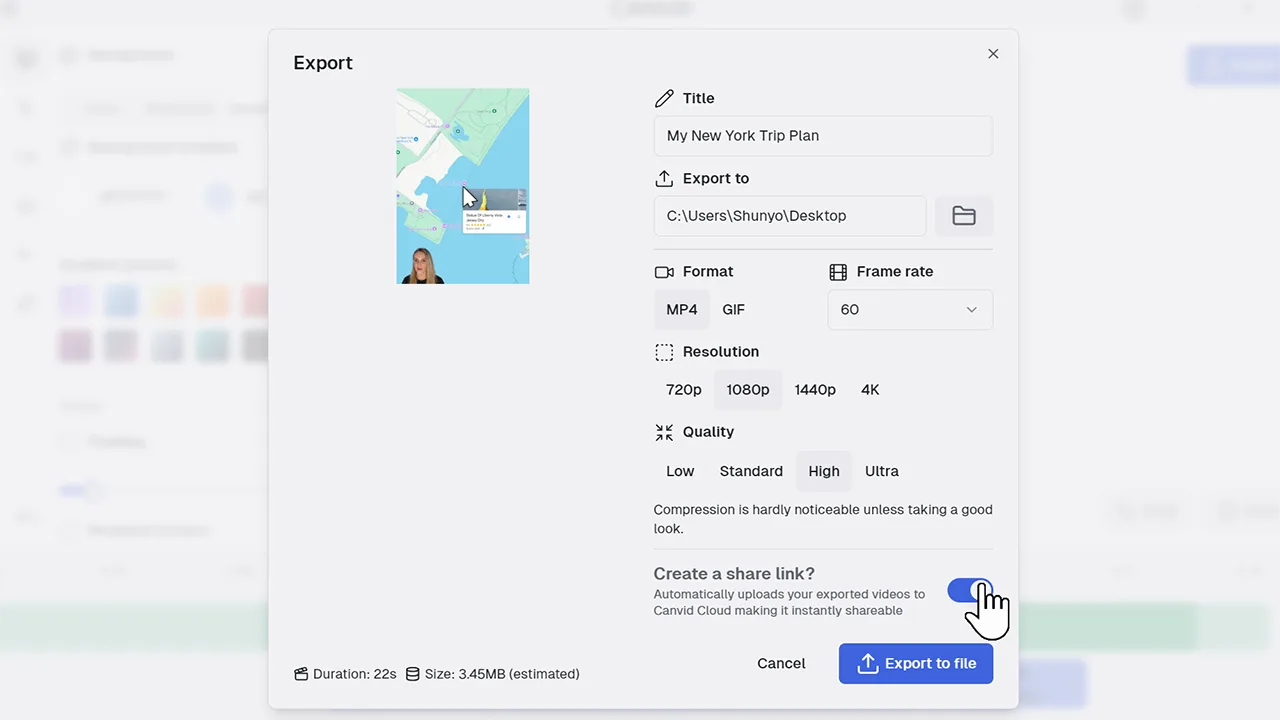
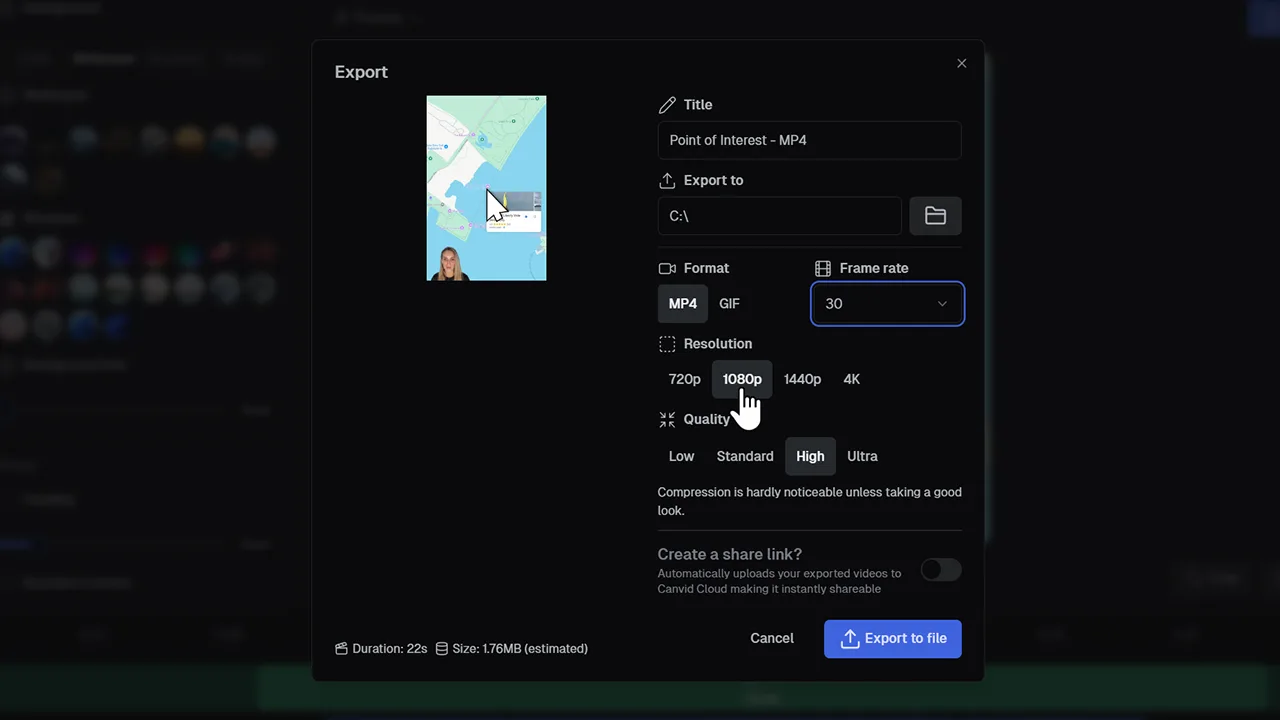
Export videos and GIFs gives you flexible output options. Select MP4 video to create high-definition exports with customizable resolution and frame rate. Or choose GIF export, which generates looped animations perfect for social posts and short demonstrations.
MP4 videos are great for polished presentations, detailed content, and platforms like YouTube. GIFs are smaller, auto-playing, and ideal for sharing micro-moments on Slack or Twitter. Having both options means you can tailor your exports to fit your goals.
Frequently Asked Questions
Yes. You can export once in MP4 and then repeat the process for the GIF format.
Use MP4 when you need higher quality and audio. Use GIFs for short loops that play automatically and do not include audio. Remember to pick an aspect ratio that fits the platform you're uploading to.
You can adjust resolution (up to 4K), frame rate (30 or 60 fps), and compression quality to balance file size and clarity.
GIF export supports various resolution options and frame rate settings so you can optimize your animation for clarity and file size.