Create A Share Link
Share your screen recording in seconds
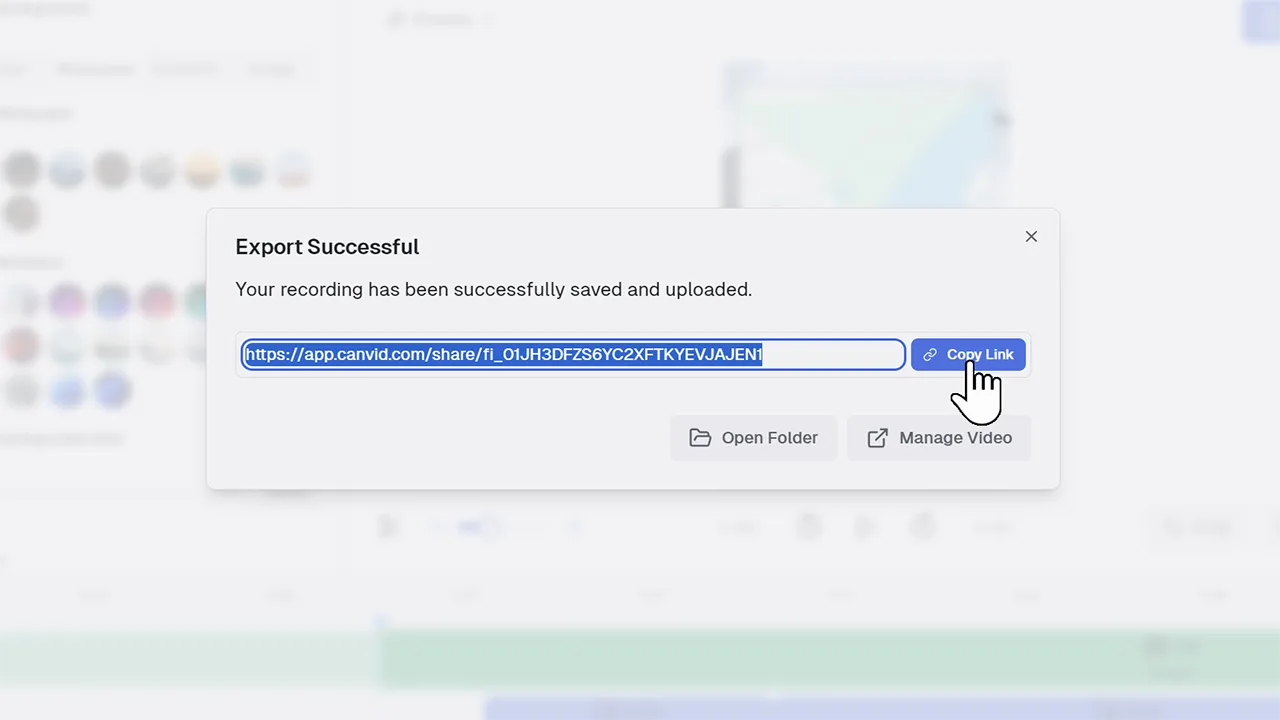
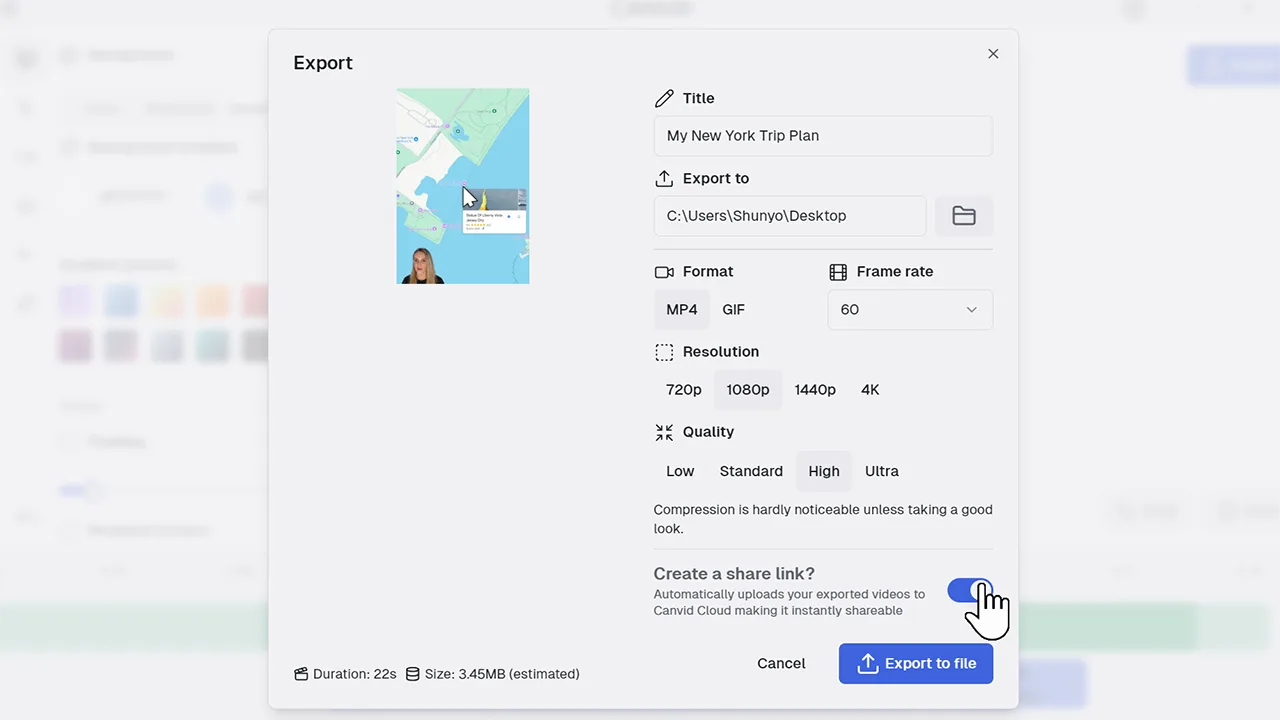
Create a Share Link lets you generate a unique URL for your screen recording once it’s exported or uploaded to CANVID Cloud. This makes it simple to share your video without sending large files.
Generating a shareable link streamlines collaboration and feedback loops by making your video instantly accessible to anyone. Whether you’re sharing tutorial snippets, bug reports, or training content, a video share link saves time and avoids email size limits.
Frequently Asked Questions
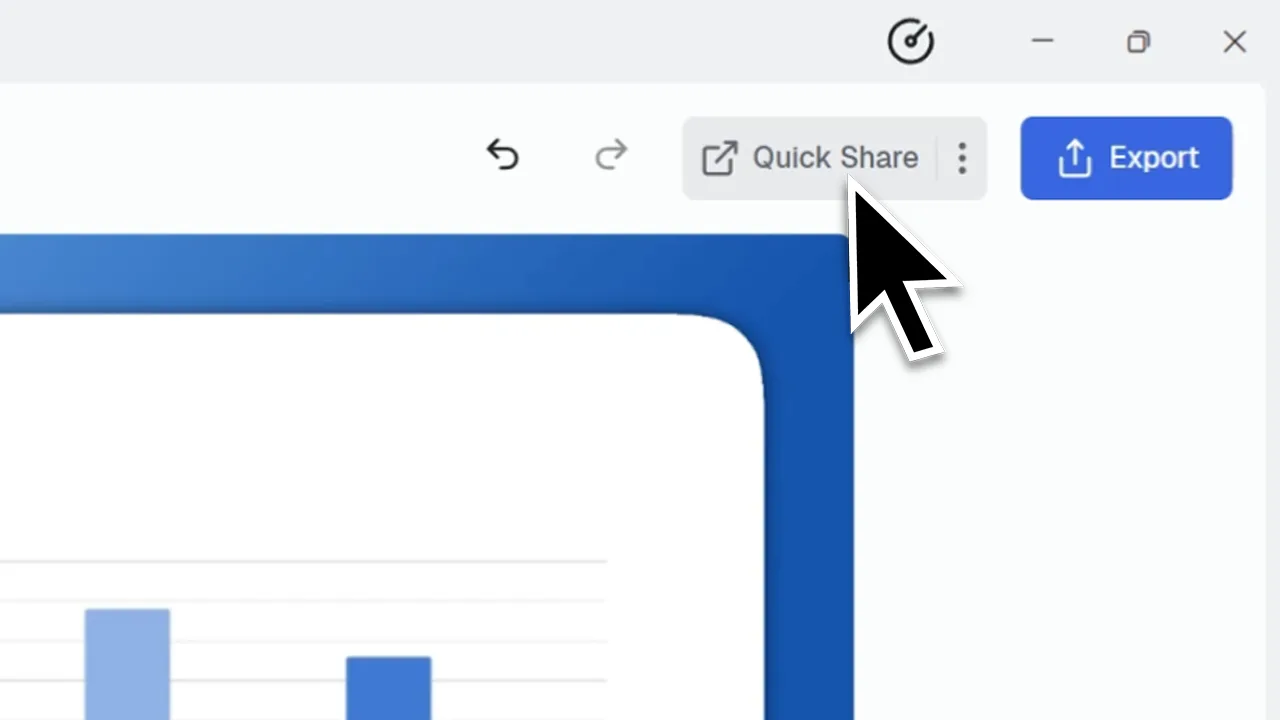
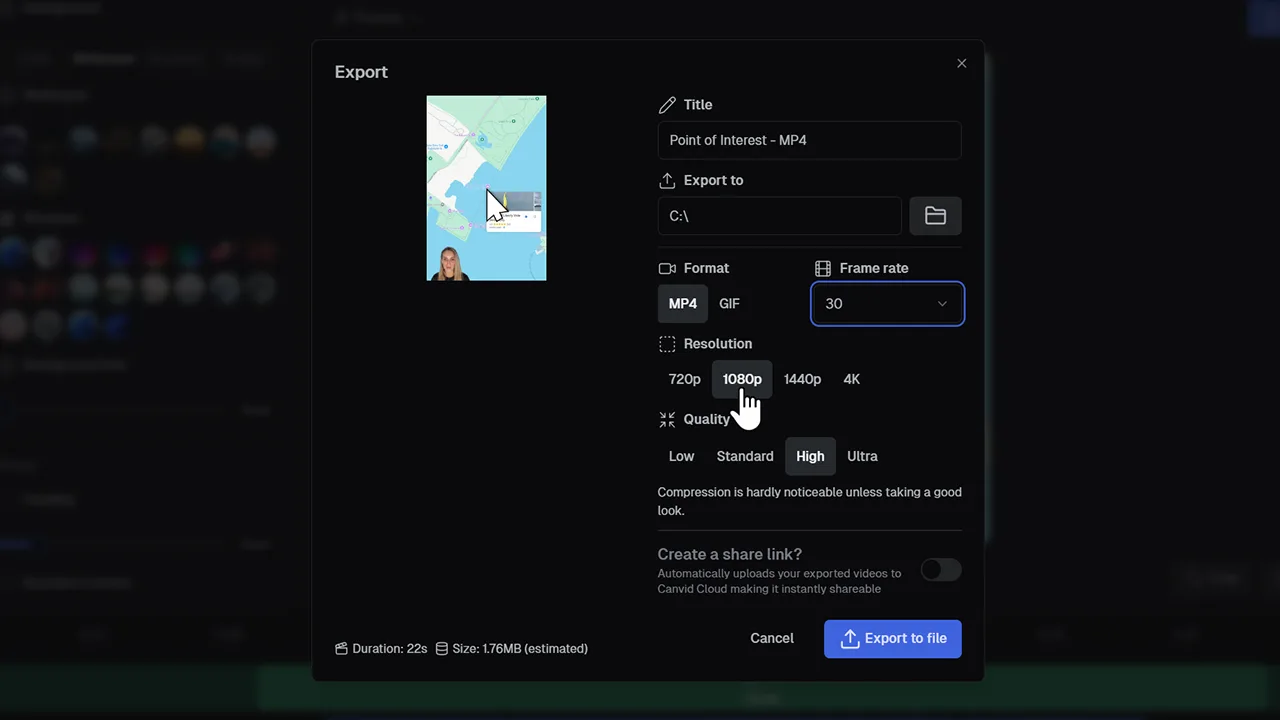
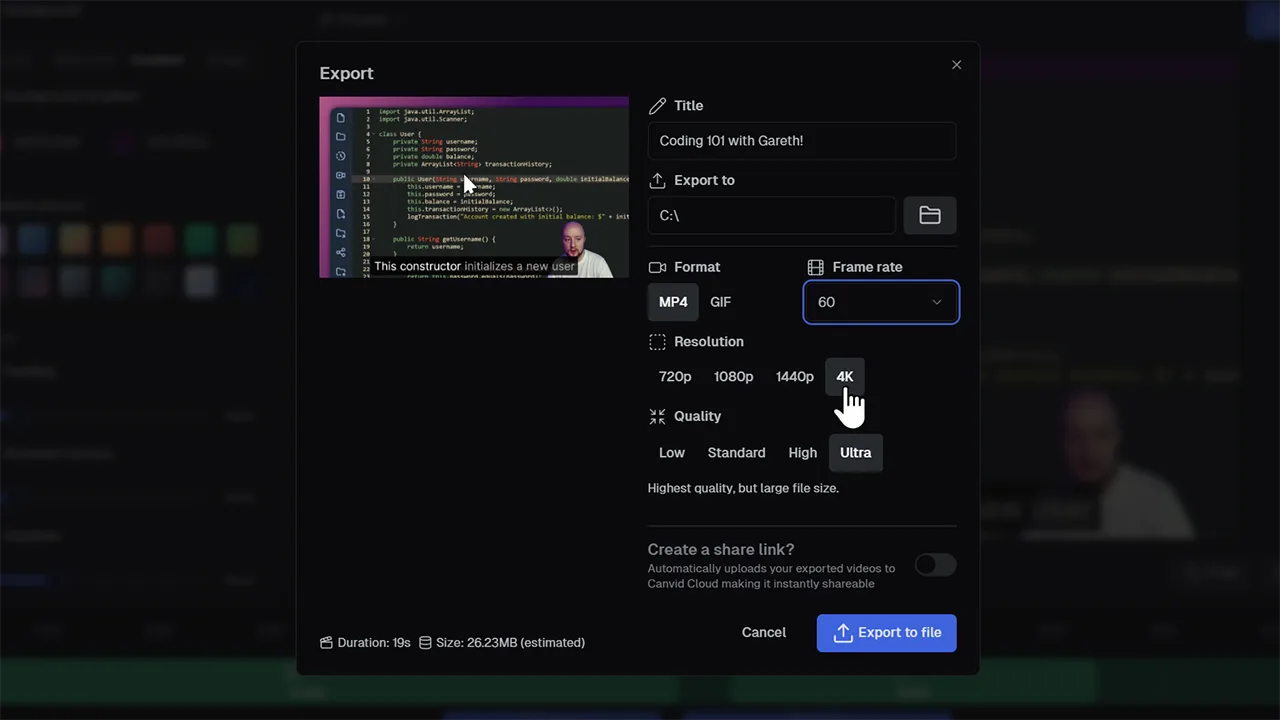
Toggle on “Create a Share Link” in the Export dialog or use the Quick Share button. CANVID will upload your file to the cloud and produce a link you can copy and paste immediately.
Yes. The generated link is private and view-only by default, so only people with the link can access your recording.
Using the Create a Share Link option improves the existing export workflow by adding cloud upload and link generation. Quick Share is the one-click version that skips manual export steps. Use export if you want your screen recording to be available locally.