Automatic & Manual Zooms
Keep Your Audience Engaged
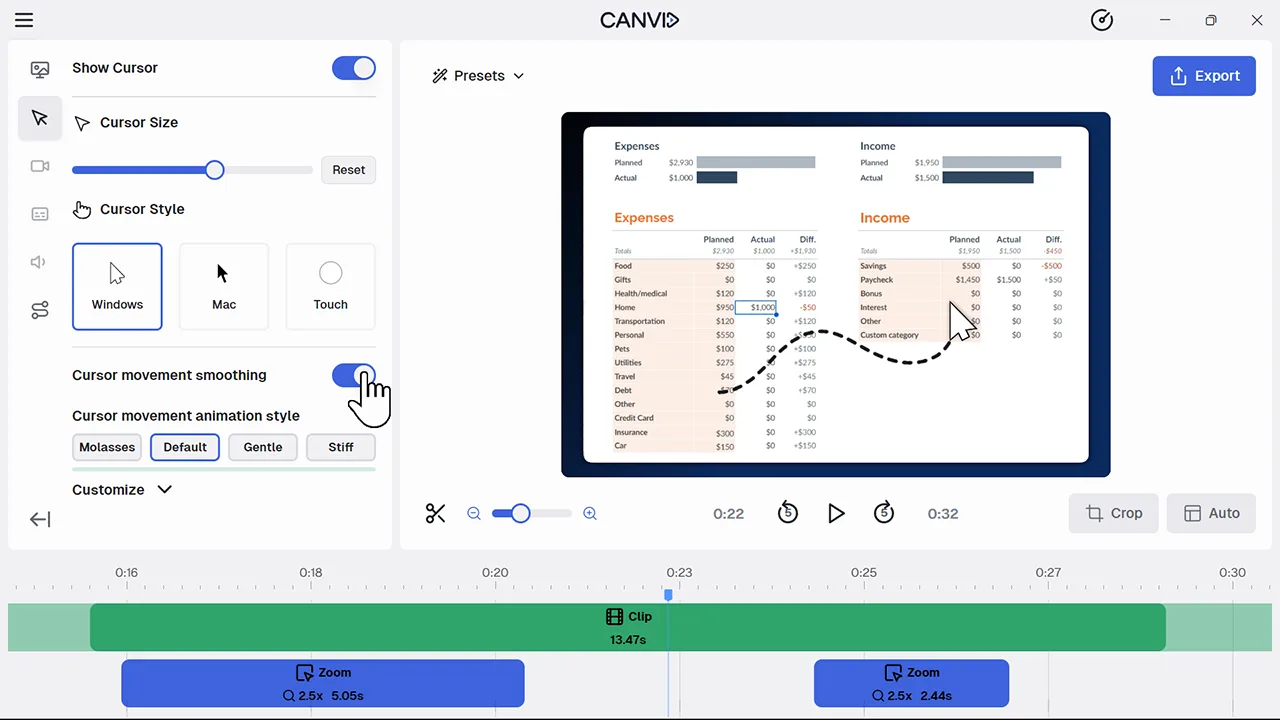
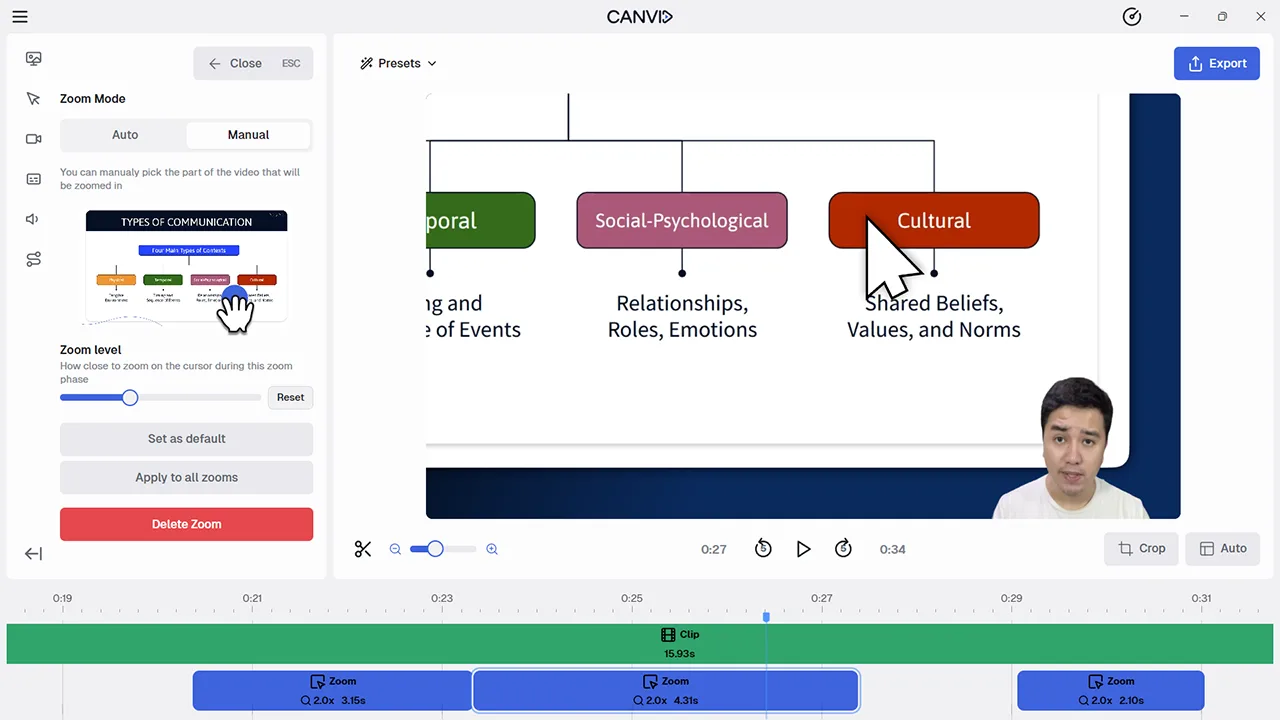
Automatic & Manual Zooms help you focus attention in your screen recordings. Auto zoom follows clicks and cursor movement, while manual zoom gives you full control in the editor.
Zooming keeps your viewers focused on the important parts of your screen. Whether automatic or manual, it makes your videos clearer and easier to follow.
Frequently Asked Questions
Automatic zoom tracks your cursor activity, adding zoom segments around clicks and movements for a smoother viewing experience.
Yes. Manual zoom mode gives you full control over zoom areas, amount, and duration using the CANVID timeline and editor user interface
Yes. Both automatic and manual zoom modes work seamlessly across platforms, making zoom functionality consistent whether you’re on Mac or Windows.
Yes. You can set a default zoom level for your recordings or customize each zoom segment manually for tailored emphasis. They even integrate with presets!