Cursor Movement Smoothing
Polish Every Pixel
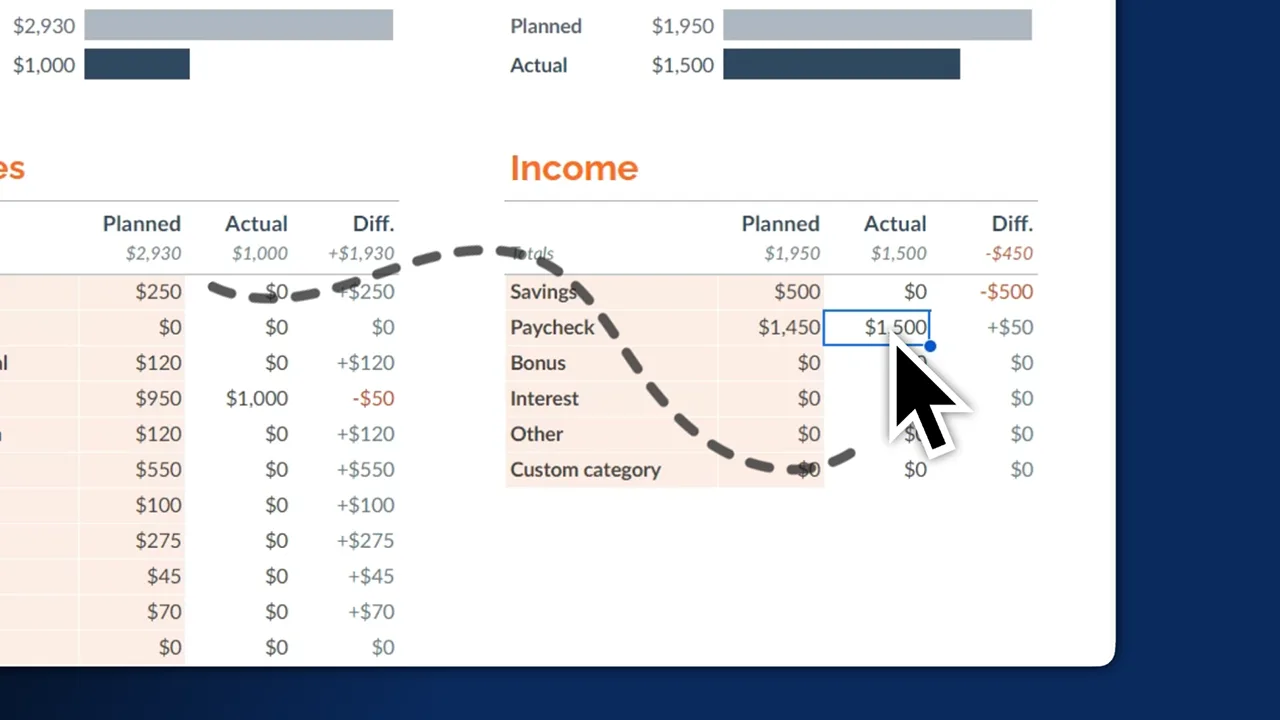
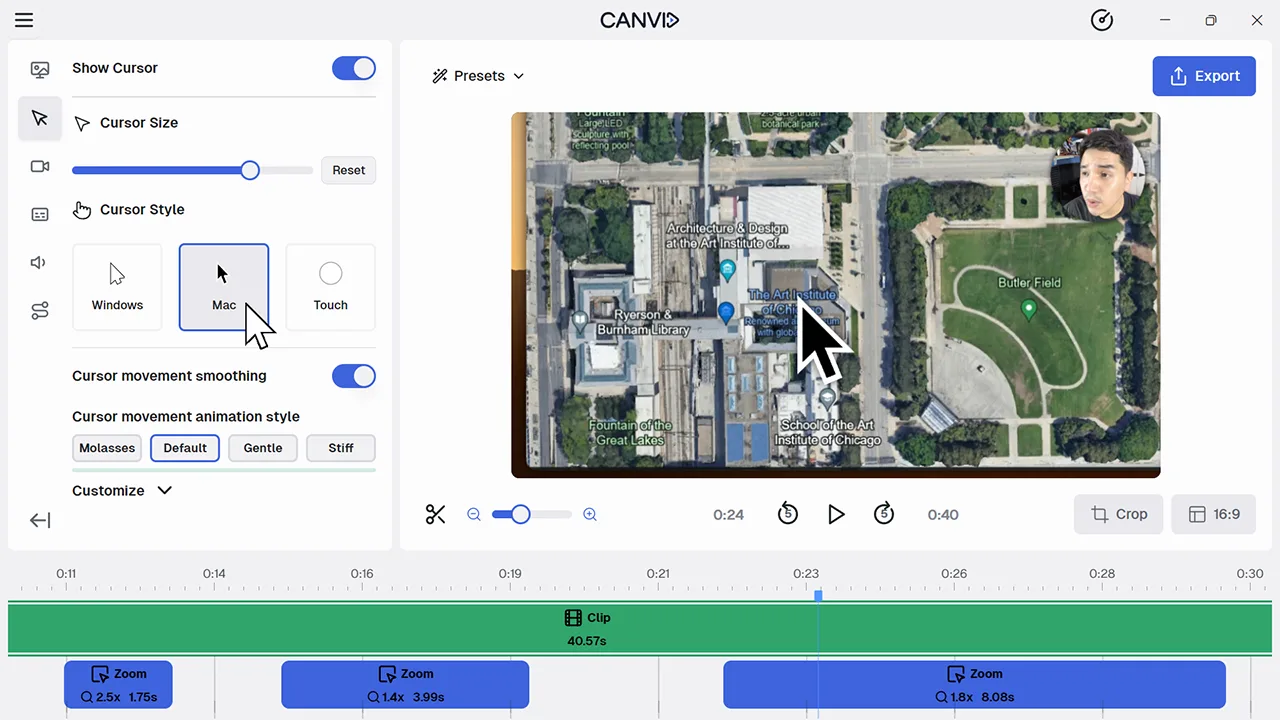
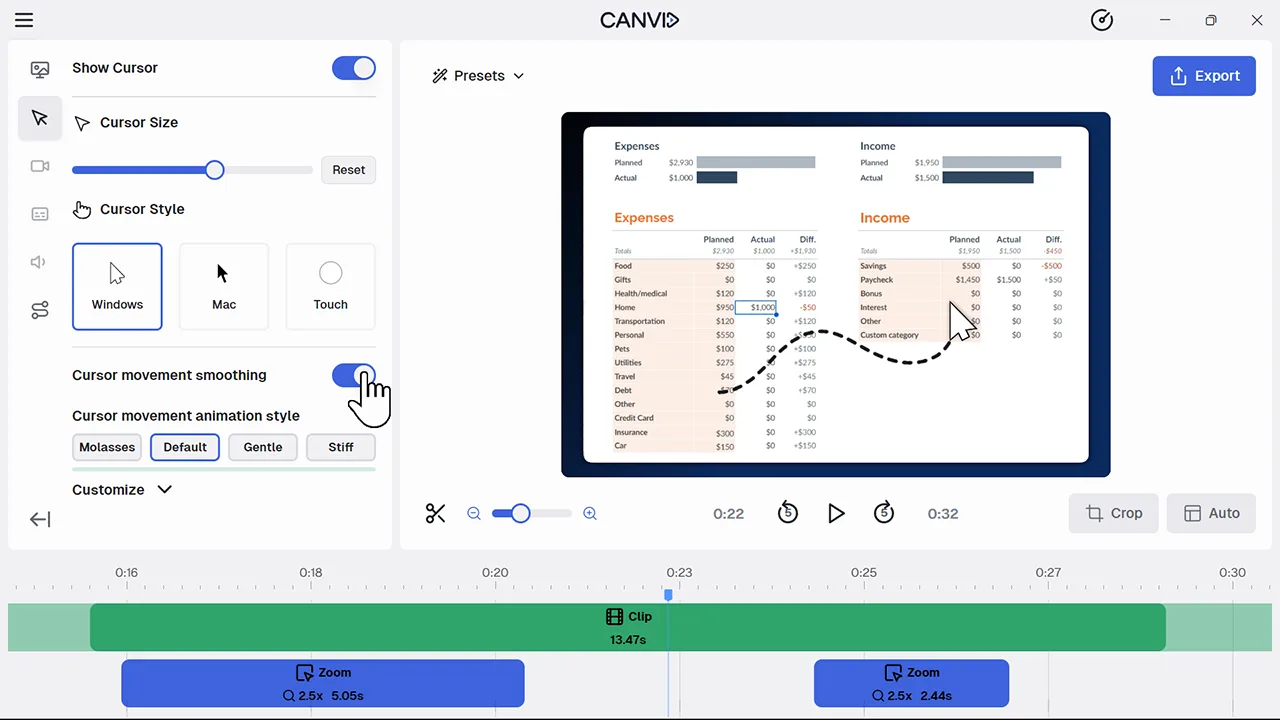
Cursor smoothing refines your cursor’s movement, making it glide smoothly rather than jumping or shaking. You can enable or disable it and adjust animation style in the Cursor section of the editor.
A smooth cursor guides viewer focus and creates a more cinematic experience. It elevates screen recordings by removing distractions and highlighting precisely what's important during tutorials, product demos, and educational videos.
Frequently Asked Questions
Yes. You have full control. Just toggle cursor smoothing in the Cursor sidebar to match your video style, whether you prefer a natural glide or a precise jump.
Yes. You can choose animation styles like Molasses, Default, Gentle, or Stiff. Each option changes how cursor movement behaves based on tension and friction sliders.
No. The smoothing is processed efficiently in the editor, so enabling it does not slow down performance or export speed.