Presets for Faster, Consistent Editing
Stay on brand without redoing your settings every time
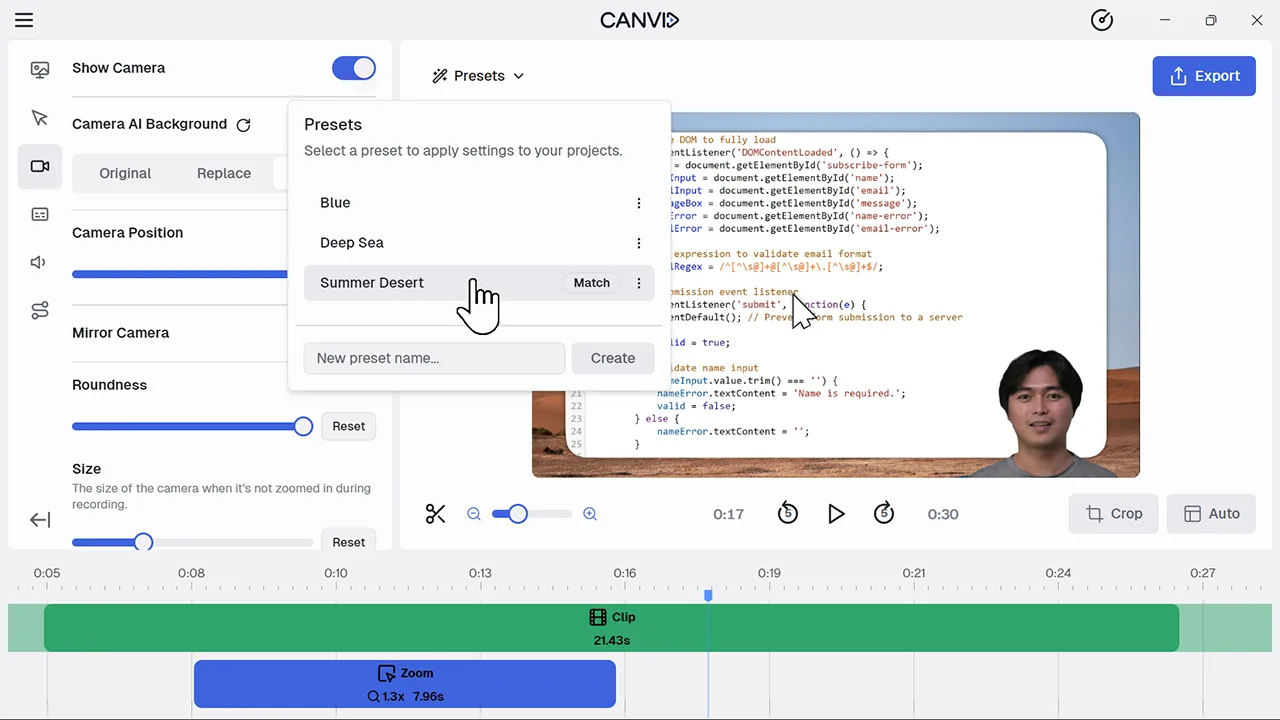
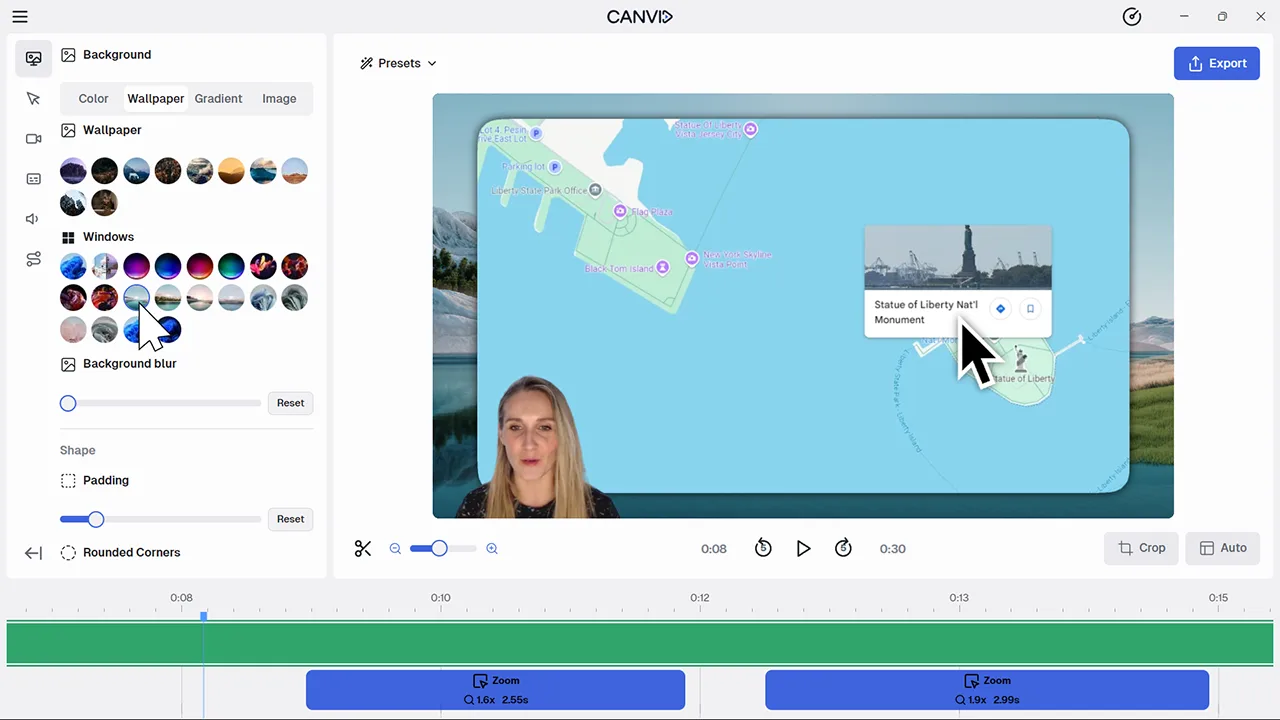
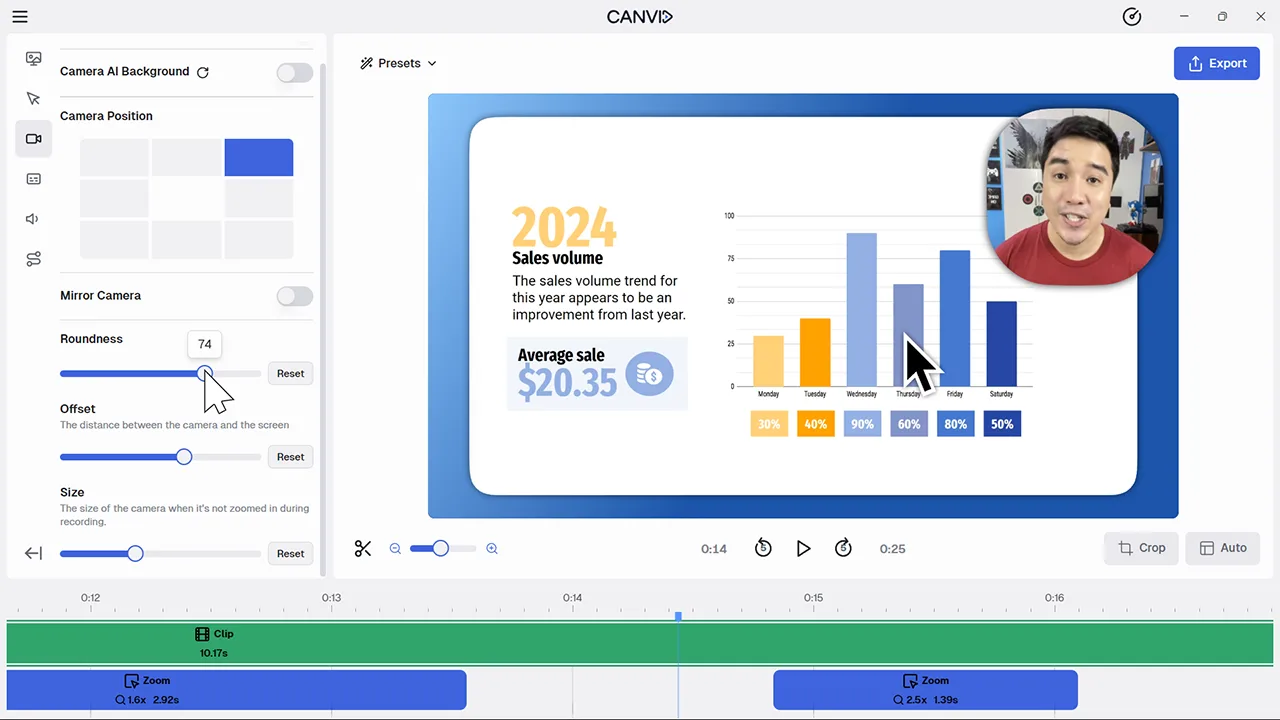
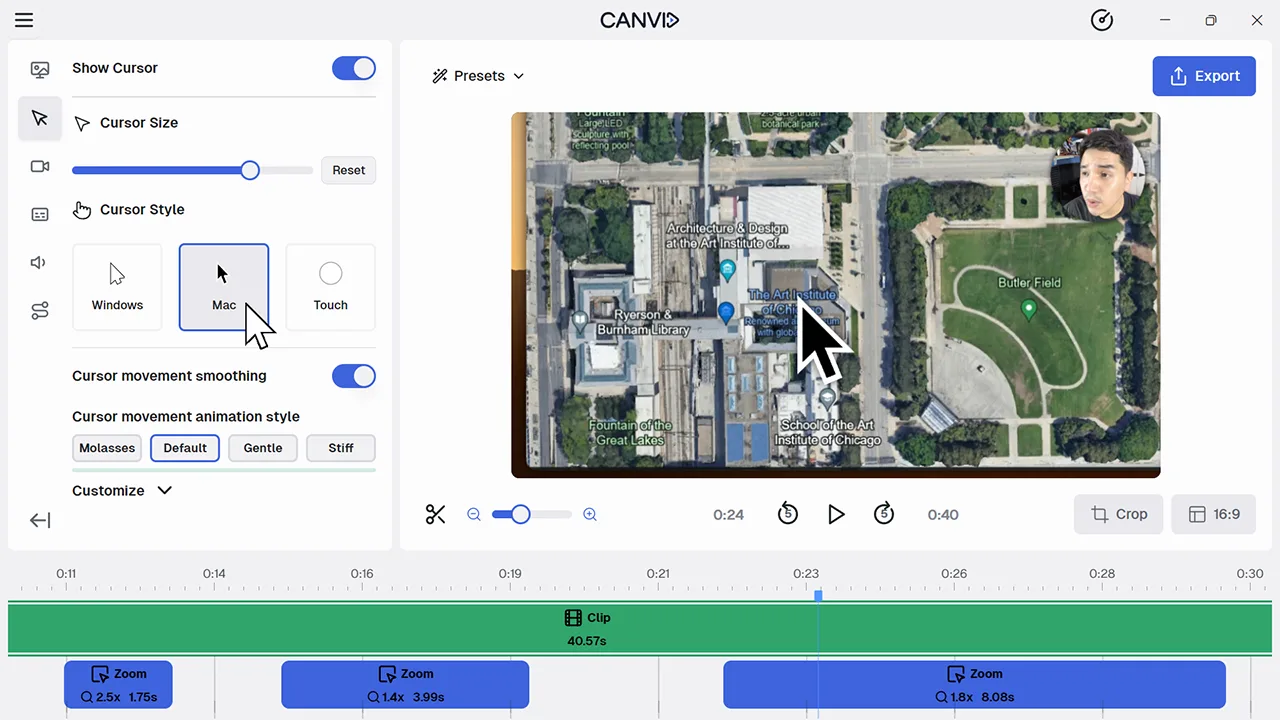
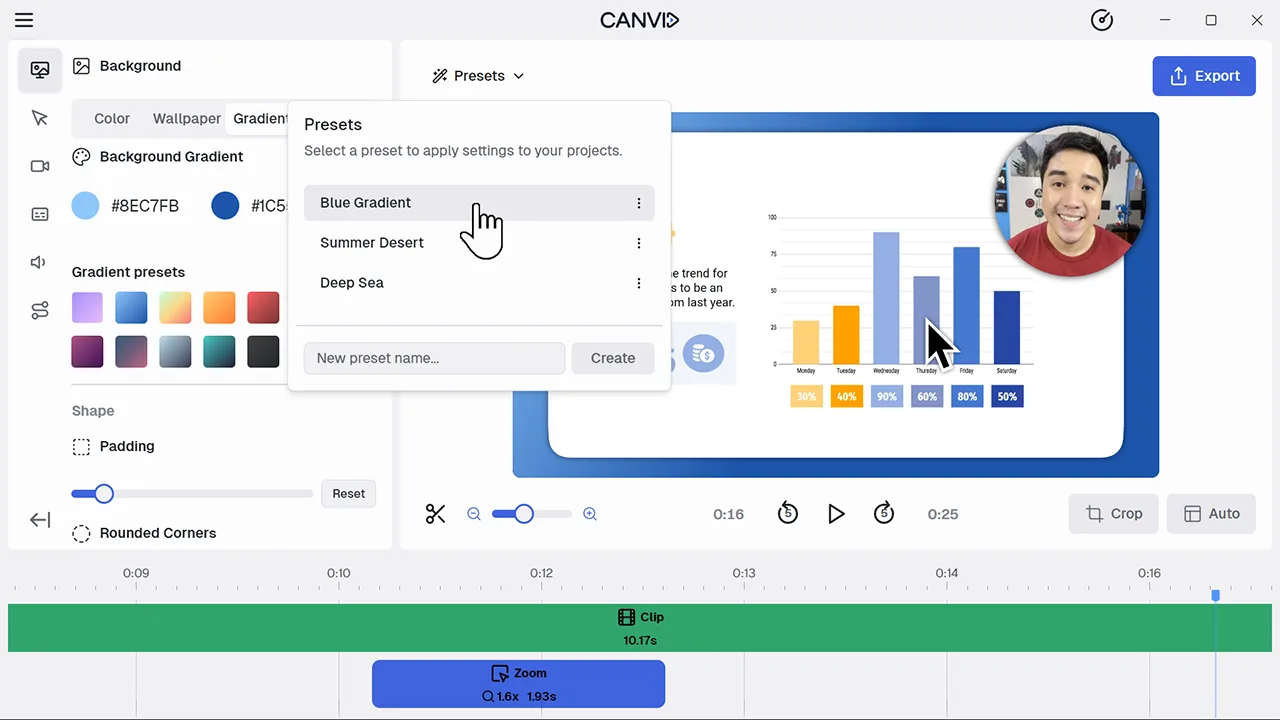
Presets are saved styles you can create in CANVID's video editor. They include everything from camera layout and padding to zoom styling and background settings. Instead of tweaking your screen recording visuals every time, just apply your preset and start editing.
Presets are perfect for anyone making regular content. If you’re sharing tutorials, product walkthroughs, or webcam recordings, presets keep your brand polished and your editing fast. They're especially useful when collaborating or switching devices.
Frequently Asked Questions
Yes. You can update, rename, reorder, or delete presets at any time.
They sure do. Presets are saved to your computer and can be applied to any project, or be shared to use on any computer.
Presets include nearly all project settings such as camera shape, padding, position, zoom style, background, and more.
Yes. The presets feature is included for all CANVID users, no purchase or subscription required.
Explore More Features