Custom Backgrounds That Match Your Style
Your screen recording, your canvas
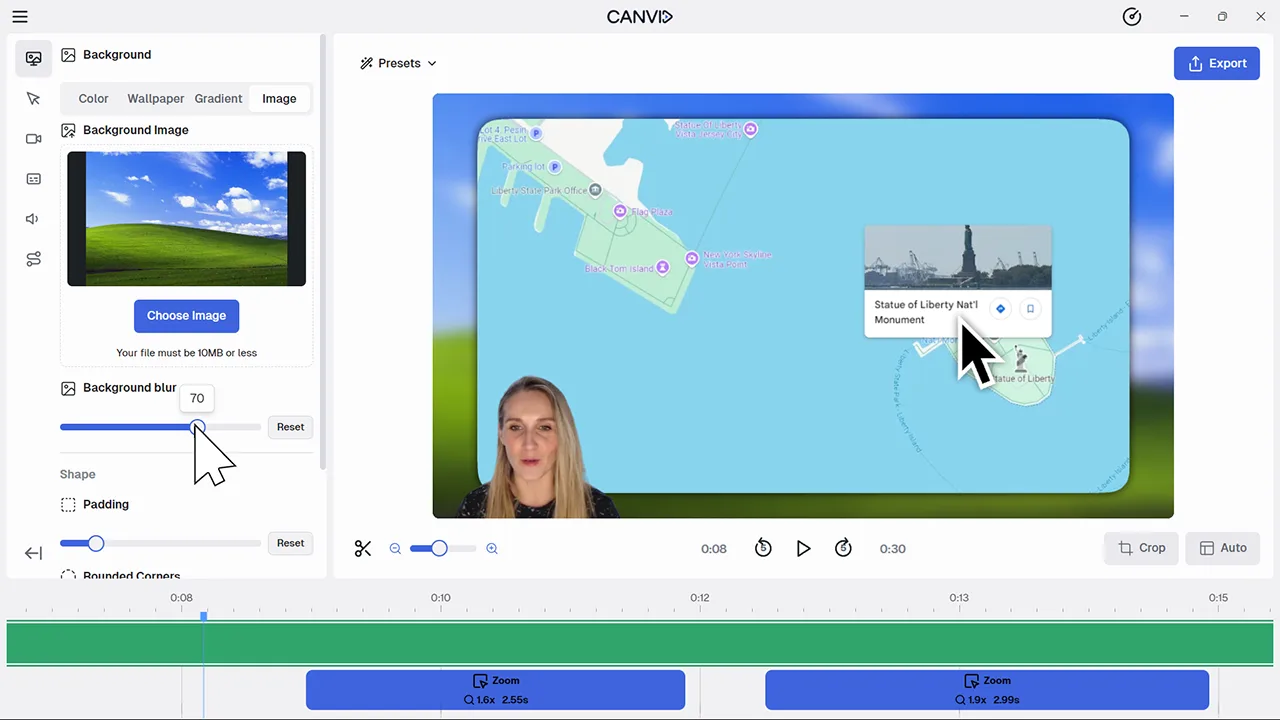
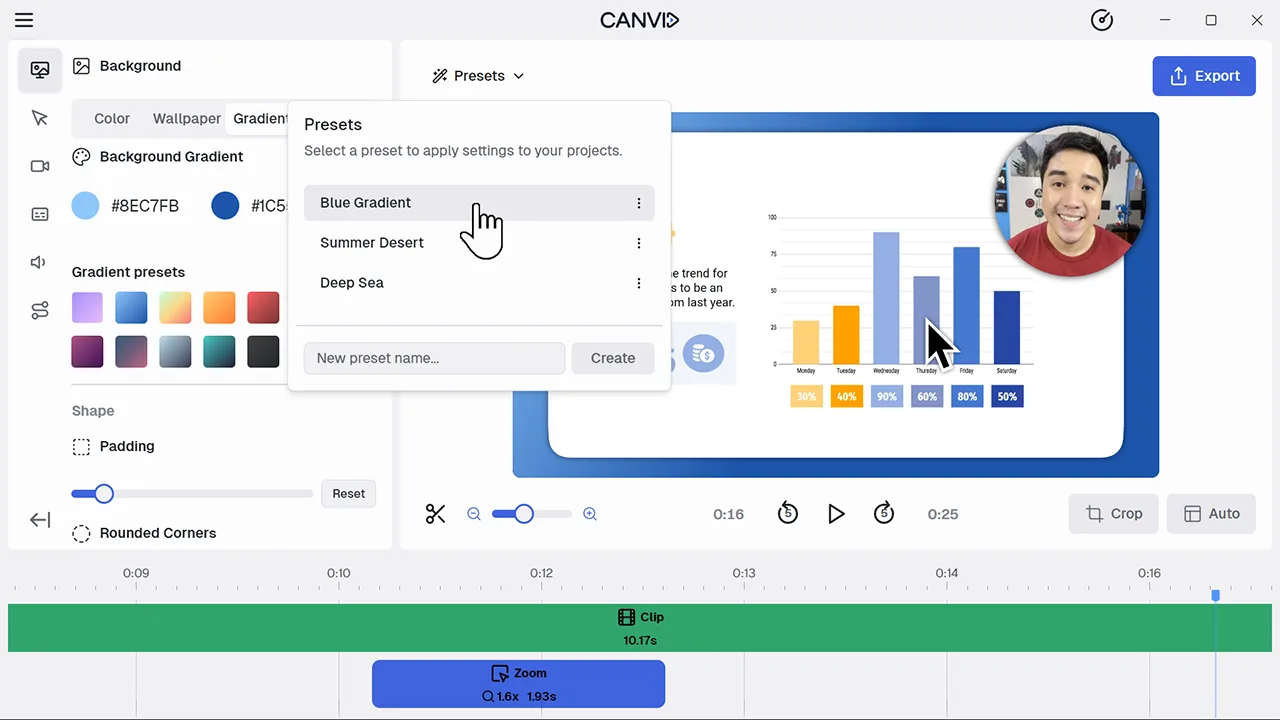
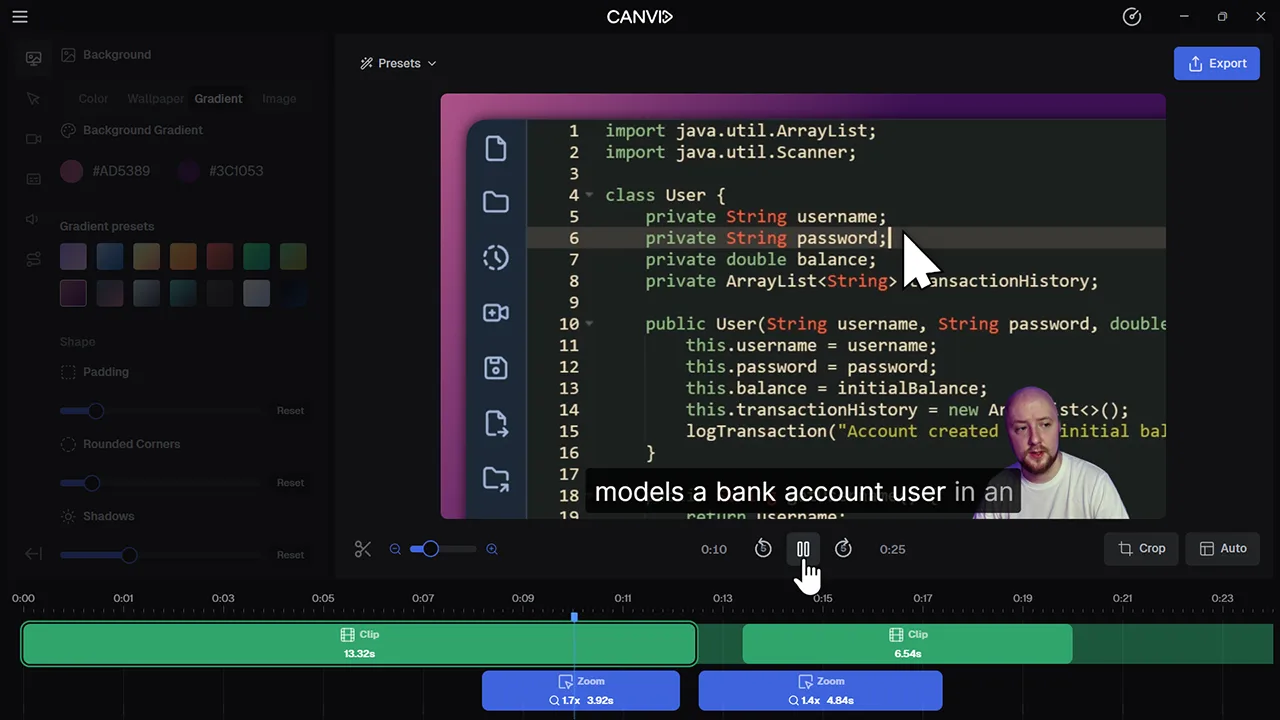
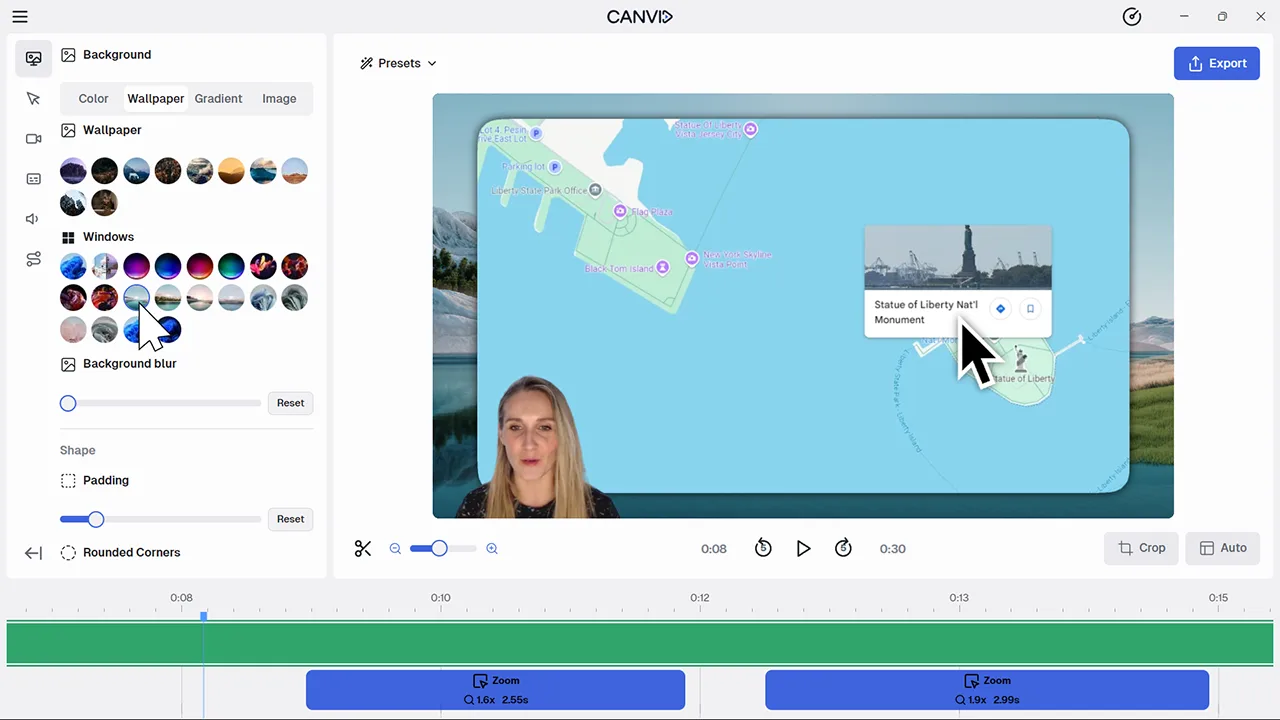
CANVID lets you style your video background with a solid color, a gradient, wallpaper or even your own image. Add blur, set padding, and choose rounded corners to shape the look of your screen recording with just a few tweaks.
Whether you’re recording for YouTube, social media or internal training, your background can make or break how polished your video feels. With CANVID, it takes seconds to match your content to your brand or aesthetic and make it look intentional.
Frequently Asked Questions
Yes, you can upload any image from your computer and use it as your background. You can also apply a blur effect to make your content stand out more.
Yes. You can save your background setup as a preset and apply it to future screen recordings instantly.
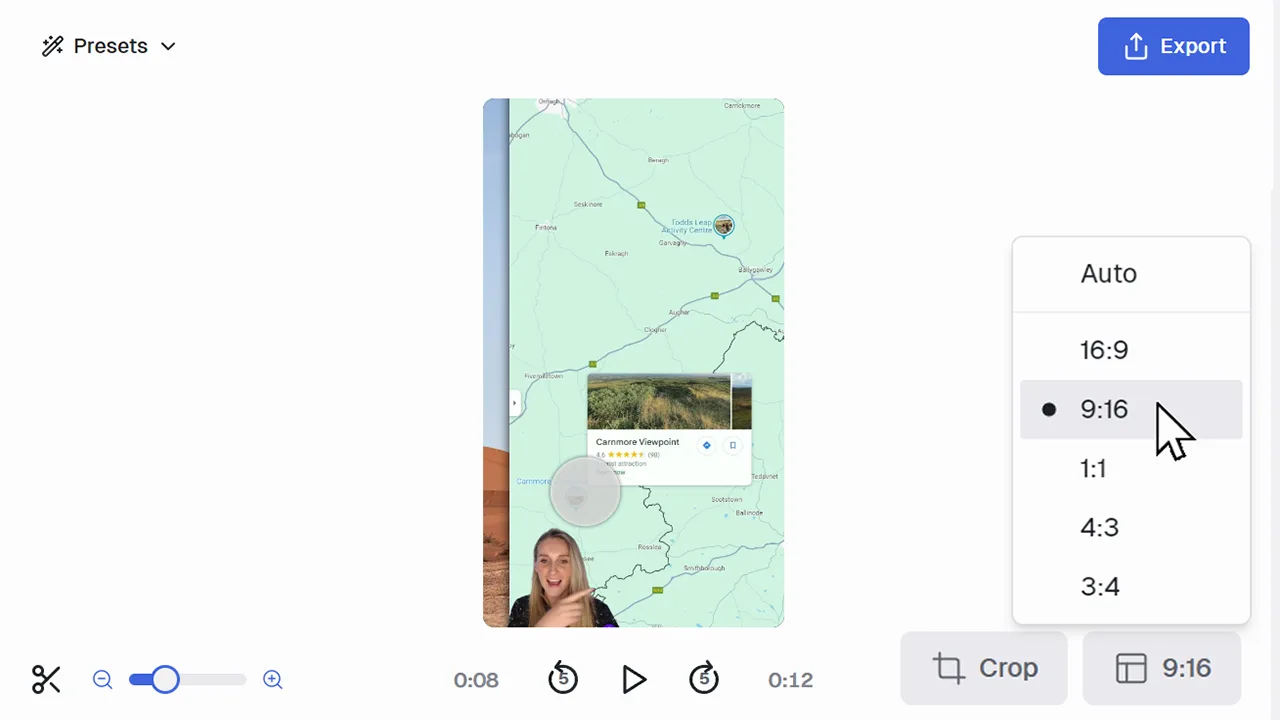
Yes, your background styling will adapt to whatever aspect ratio you choose. Whether it's widescreen or vertical, your look stays consistent.