AI Camera Background
Look polished in every recording
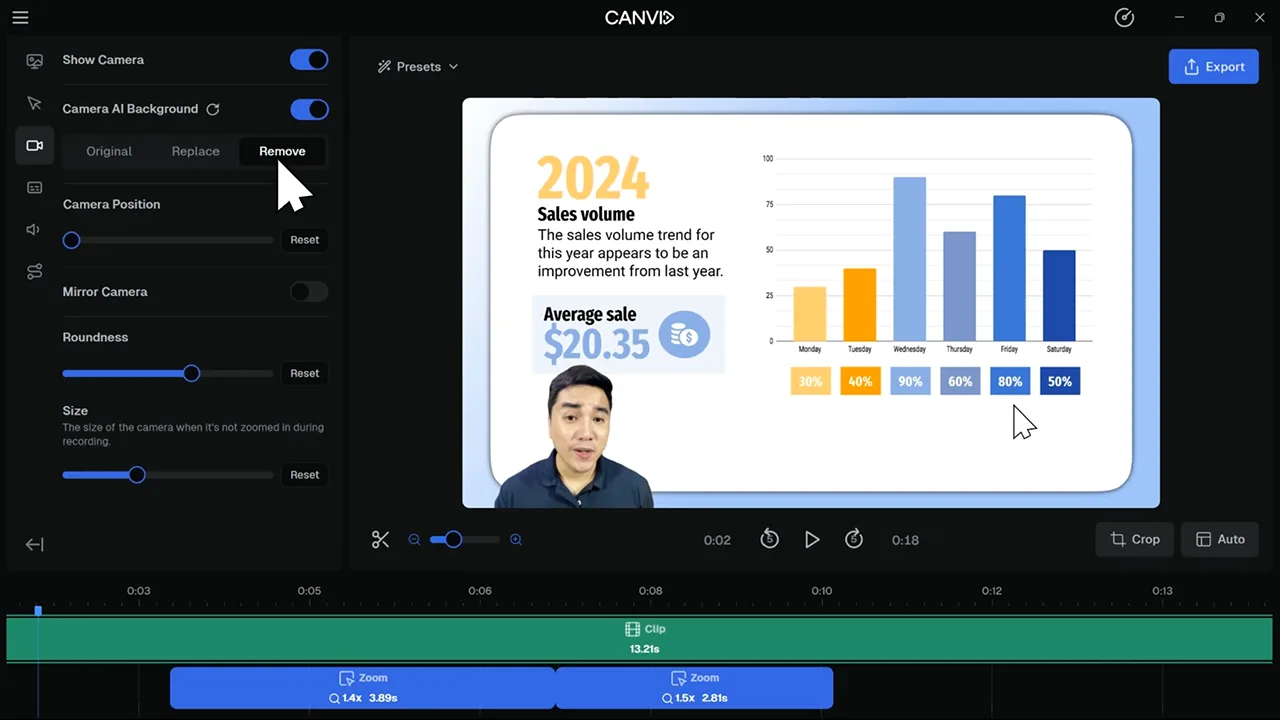
AI Camera Background uses machine learning to let you blur your background, remove it completely, or replace it with a custom image. You don’t need a green screen or a studio setup. Just record your screen and enable the effect in the editor.
A clean webcam background makes your videos look more professional and focused. Whether you want to blur your webcam background for privacy or use a branded background image, this feature helps you stay on brand and distraction-free.
Frequently Asked Questions
In the Camera tab of the editor, turn on "Camera AI Background" and choose from Blur, Remove, or Replace. The change applies instantly.
No. Our AI automatically separates you from your background. No green screen setup is needed.
Yes. Select Replace, then choose any image you want to use behind your webcam.
Yes. Webcam background blur, removal, and replacement are supported on both platforms.
Explore More Features